> ## Documentation Index
> Fetch the complete documentation index at: https://docs.arcuserp.com/llms.txt
> Use this file to discover all available pages before exploring further.
# Combined Runs
> Coordinate two or more independent work orders, review intermediate product flow, release members, monitor progress, and dissolve the group safely.
A combined run groups two or more work orders that should be planned together. A common example is disassembling one product to recover parts, then using those parts in a build.
The group coordinates the sequence and intermediate flow. Each member remains an independent work order with its own status, materials, labor timer, completion, costs, inventory movements, and accounting activity.
You need **manufacturing.view** to see combined-run information and **manufacturing.create** to open the planning wizard. Dissolving a group requires edit permission.
## Decide When To Use A Combined Run
Use a combined run when:
* Two or more active BOMs describe work that should happen together.
* One work order produces a part another member consumes.
* A teardown can recover a component needed by a build.
* Supervisors need one coordination view without replacing the individual work orders.
Use standalone work orders when the jobs do not share intermediate products or do not need common planning context.
## Open The Planning Wizard
From **Manufacturing**, open **Work Orders**, then click **Plan Combined Run**.
The wizard can also open with recipes already selected from:
* **Buildability with disassembly** on an assembly BOM.
* **Plan combined run** on an MRP suggestion with usable teardown recovery.
If you lack create permission, Arcus shows a no-access panel instead of the wizard.
## Step 1: Choose Members
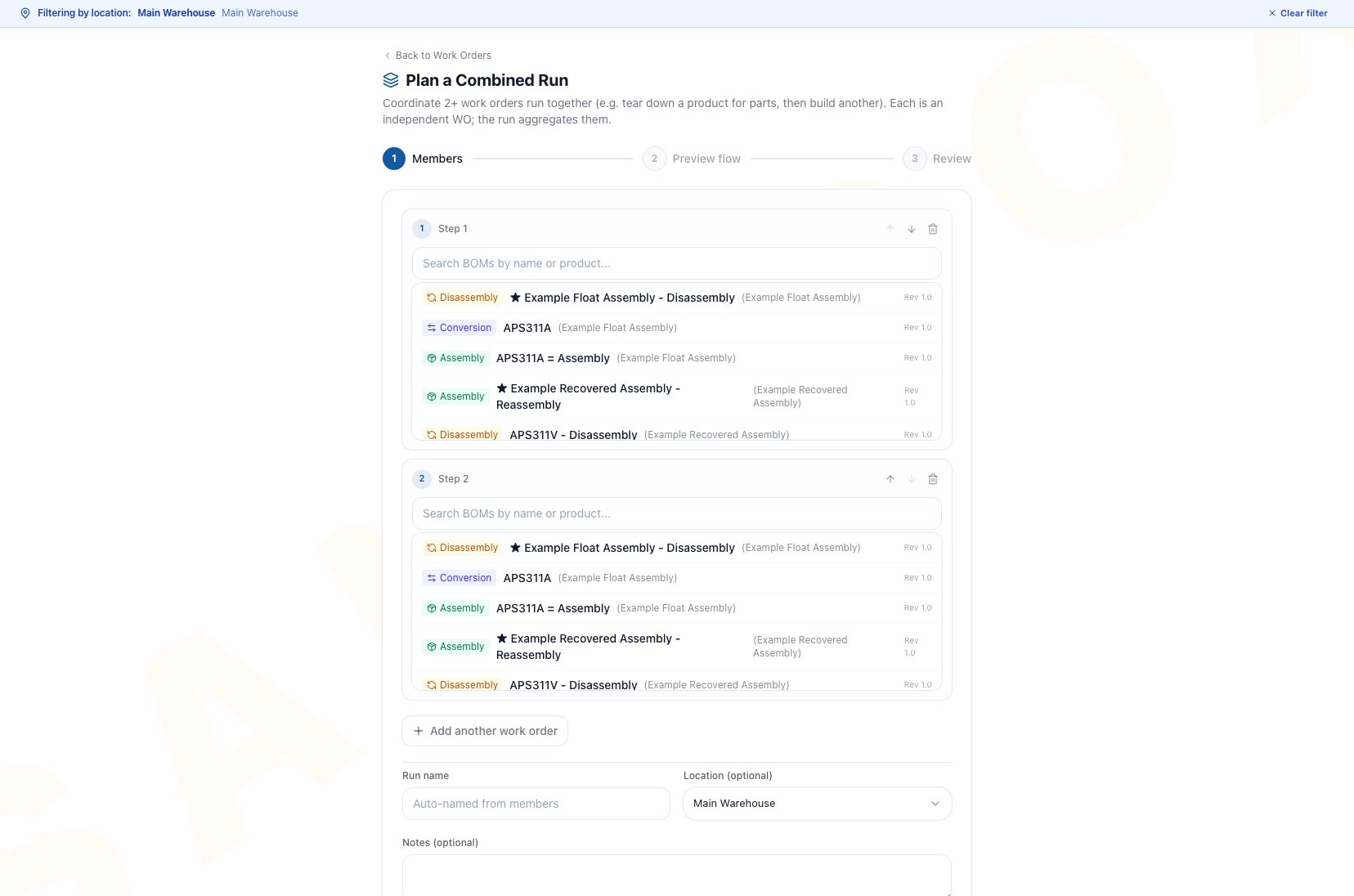 1. Search for an active BOM in the first member row.
2. Enter the type-specific quantity, such as quantity to build, disassemble, or convert.
3. Select at least one more active BOM and enter its quantity.
4. Put the members in physical sequence. Use the move controls to place teardown before the job that consumes the recovered parts.
5. Click **Add another work order** for additional steps.
6. Accept the generated run name or enter a clearer one.
7. Review the location. Arcus starts with the company's default warehouse when one is configured, but you can choose another location or **No specific location**. The selected location is inherited by the member work orders.
8. Add optional coordination notes.
9. Click **Continue**.
The wizard requires at least two selected members. Every selected member needs a quantity greater than zero. You can remove a row while more than one row remains.
Only active BOMs appear in the member picker. Activate or restore a recipe before trying to add it.
## Step 2: Preview Intermediate Flow
The flow table compares what the members produce and consume for each intermediate product.
* **Produced** is the quantity created by members in the run.
* **Consumed** is the quantity required by later members.
* **Banked** is produced quantity minus consumed quantity. A positive amount remains in stock.
If Banked is negative, the run consumes more than it produces. Arcus allows that decision because existing stock can cover the difference, but you must select **I understand the shortfall draws from stock** before continuing.
If no intermediate products connect the jobs, the page says each work order produces or consumes independently. You can still use the group for coordination, but confirm that grouping adds useful operating context.
## Step 3: Review And Create
Review the name, member order, BOM type, quantity, run count for batch recipes, per-member estimated cost, group estimated cost, and intermediate flow.
1. Click **Back** if the order, quantities, or stock decision needs correction.
2. Click **Create combined run** when the review is correct.
Arcus creates the group and one draft work order for every member. The success page lists each work order with its sequence and type.
After creation, choose:
* **View combined run** to open the coordination drawer.
* **Release all** to attempt to release every draft member.
* A work-order number to open that member.
* **Done** to return to the Work Orders page.
Release all operates on the member work orders. Review recipe accuracy, quantities, location, dates, and availability before releasing production work.
## Find And Monitor Combined Runs
In Work Orders Kanban view, groups appear in the **Combined Runs** strip above the board. Each pill shows the group number, derived status, and completed steps. The strip is hidden when no groups exist.
Member cards show a group ribbon. List view adds a **Group** column. On work-order detail, select the group number to open the group drawer, which contains links to the sibling work orders.
## Read The Combined-Run Drawer
The drawer shows:
* Group number, name, and derived status: **Planned**, **In progress**, **Complete**, or **Cancelled**. The state is calculated from the members and is not edited on the group.
* **Intermediate flow**, comparing planned production and consumption with actual results after work begins.
* Banked quantity and a variance marker when actual flow differs from the plan.
* Member work orders in sequence, with type, status, progress, and a link to each detail page.
* Read-only labor minutes and labor cost across all members.
* Group notes.
There is no shared group labor timer. Start, pause, resume, stop, and book labor on the individual work orders. The group drawer only totals the results.
If no intermediate product connects the members, the drawer says so. If no work orders remain, it shows an empty member state. A load failure displays the error and a **Retry** action.
## Run The Member Work Orders
1. Release and start each member when the floor is ready.
2. Issue, return, scrap, or substitute material on the appropriate member.
3. Use the member's labor timer or manual labor entry.
4. Complete each member separately with the correct quantities, serials, and cost decisions.
5. Review the drawer as actual flow replaces planned-only values.
6. Close completed members when operational review is finished.
A member can be cancelled according to normal work-order rules. The group status and actual flow update from member states. If all members are cancelled, the group is Cancelled. Undoing an eligible member completion also refreshes actual flow and the derived group status.
## Dissolve A Combined Run
Dissolve the group when the coordination relationship is wrong or no longer useful, but the work orders should remain.
1. Open the combined-run drawer.
2. Open the action menu and choose **Dissolve group**.
3. Review the confirmation, including the number of member work orders released as standalone records.
4. Click **Dissolve group**.
Dissolving does not cancel the work orders. Each member keeps its status, material activity, labor, inventory movements, and accounting history. Only the group relationship is removed.
The action is disabled when you lack edit permission. If dissolution fails, the group stays intact and Arcus displays an error.
## Common Refusals And Decisions
* **No BOM matches the search**: confirm the recipe is active and search by BOM name or product.
* **Continue is disabled**: add at least two selected members and give each a positive quantity.
* **Review is disabled**: acknowledge a negative Banked quantity or change the member quantities.
* **Create fails**: recheck active recipes, member order, quantities, and location, then retry.
* **A member remains Draft after Release all**: open that member and try **Release** there to see the specific refusal.
* **No Combined Runs strip appears**: there are no groups to show, the page is in List view, or the group list could not load.
* **Actual flow is blank**: no member completion has produced an actual result yet.
* **Group shows Cancelled**: every member is cancelled. Open the member work orders to review their cancellation history.
* **Dissolve is disabled**: edit permission is required.
* **The jobs do not share intermediate products**: use the group only if sequence or supervision still benefits. Otherwise keep the work orders standalone.
## Related Articles
Run each combined-run member through materials, labor, completion, close, cancellation, and reversal.
Create active assembly, disassembly, and conversion recipes and review teardown buildability.
Find shortages and open a preselected combined run when teardown recovery can help a build.
Review the individual work orders that feed WIP, variance, build history, and component usage.
1. Search for an active BOM in the first member row.
2. Enter the type-specific quantity, such as quantity to build, disassemble, or convert.
3. Select at least one more active BOM and enter its quantity.
4. Put the members in physical sequence. Use the move controls to place teardown before the job that consumes the recovered parts.
5. Click **Add another work order** for additional steps.
6. Accept the generated run name or enter a clearer one.
7. Review the location. Arcus starts with the company's default warehouse when one is configured, but you can choose another location or **No specific location**. The selected location is inherited by the member work orders.
8. Add optional coordination notes.
9. Click **Continue**.
The wizard requires at least two selected members. Every selected member needs a quantity greater than zero. You can remove a row while more than one row remains.
Only active BOMs appear in the member picker. Activate or restore a recipe before trying to add it.
## Step 2: Preview Intermediate Flow
The flow table compares what the members produce and consume for each intermediate product.
* **Produced** is the quantity created by members in the run.
* **Consumed** is the quantity required by later members.
* **Banked** is produced quantity minus consumed quantity. A positive amount remains in stock.
If Banked is negative, the run consumes more than it produces. Arcus allows that decision because existing stock can cover the difference, but you must select **I understand the shortfall draws from stock** before continuing.
If no intermediate products connect the jobs, the page says each work order produces or consumes independently. You can still use the group for coordination, but confirm that grouping adds useful operating context.
## Step 3: Review And Create
Review the name, member order, BOM type, quantity, run count for batch recipes, per-member estimated cost, group estimated cost, and intermediate flow.
1. Click **Back** if the order, quantities, or stock decision needs correction.
2. Click **Create combined run** when the review is correct.
Arcus creates the group and one draft work order for every member. The success page lists each work order with its sequence and type.
After creation, choose:
* **View combined run** to open the coordination drawer.
* **Release all** to attempt to release every draft member.
* A work-order number to open that member.
* **Done** to return to the Work Orders page.
Release all operates on the member work orders. Review recipe accuracy, quantities, location, dates, and availability before releasing production work.
## Find And Monitor Combined Runs
In Work Orders Kanban view, groups appear in the **Combined Runs** strip above the board. Each pill shows the group number, derived status, and completed steps. The strip is hidden when no groups exist.
Member cards show a group ribbon. List view adds a **Group** column. On work-order detail, select the group number to open the group drawer, which contains links to the sibling work orders.
## Read The Combined-Run Drawer
The drawer shows:
* Group number, name, and derived status: **Planned**, **In progress**, **Complete**, or **Cancelled**. The state is calculated from the members and is not edited on the group.
* **Intermediate flow**, comparing planned production and consumption with actual results after work begins.
* Banked quantity and a variance marker when actual flow differs from the plan.
* Member work orders in sequence, with type, status, progress, and a link to each detail page.
* Read-only labor minutes and labor cost across all members.
* Group notes.
There is no shared group labor timer. Start, pause, resume, stop, and book labor on the individual work orders. The group drawer only totals the results.
If no intermediate product connects the members, the drawer says so. If no work orders remain, it shows an empty member state. A load failure displays the error and a **Retry** action.
## Run The Member Work Orders
1. Release and start each member when the floor is ready.
2. Issue, return, scrap, or substitute material on the appropriate member.
3. Use the member's labor timer or manual labor entry.
4. Complete each member separately with the correct quantities, serials, and cost decisions.
5. Review the drawer as actual flow replaces planned-only values.
6. Close completed members when operational review is finished.
A member can be cancelled according to normal work-order rules. The group status and actual flow update from member states. If all members are cancelled, the group is Cancelled. Undoing an eligible member completion also refreshes actual flow and the derived group status.
## Dissolve A Combined Run
Dissolve the group when the coordination relationship is wrong or no longer useful, but the work orders should remain.
1. Open the combined-run drawer.
2. Open the action menu and choose **Dissolve group**.
3. Review the confirmation, including the number of member work orders released as standalone records.
4. Click **Dissolve group**.
Dissolving does not cancel the work orders. Each member keeps its status, material activity, labor, inventory movements, and accounting history. Only the group relationship is removed.
The action is disabled when you lack edit permission. If dissolution fails, the group stays intact and Arcus displays an error.
## Common Refusals And Decisions
* **No BOM matches the search**: confirm the recipe is active and search by BOM name or product.
* **Continue is disabled**: add at least two selected members and give each a positive quantity.
* **Review is disabled**: acknowledge a negative Banked quantity or change the member quantities.
* **Create fails**: recheck active recipes, member order, quantities, and location, then retry.
* **A member remains Draft after Release all**: open that member and try **Release** there to see the specific refusal.
* **No Combined Runs strip appears**: there are no groups to show, the page is in List view, or the group list could not load.
* **Actual flow is blank**: no member completion has produced an actual result yet.
* **Group shows Cancelled**: every member is cancelled. Open the member work orders to review their cancellation history.
* **Dissolve is disabled**: edit permission is required.
* **The jobs do not share intermediate products**: use the group only if sequence or supervision still benefits. Otherwise keep the work orders standalone.
## Related Articles
Run each combined-run member through materials, labor, completion, close, cancellation, and reversal.
Create active assembly, disassembly, and conversion recipes and review teardown buildability.
Find shortages and open a preselected combined run when teardown recovery can help a build.
Review the individual work orders that feed WIP, variance, build history, and component usage.