> ## Documentation Index
> Fetch the complete documentation index at: https://docs.arcuserp.com/llms.txt
> Use this file to discover all available pages before exploring further.
# Buildability And Product Manufacturing
> Interpret BOM availability and teardown-assisted buildability, then review a product's recipes, supply method, and manufacturing history.
BOM availability answers a planning question: how much work could current entity-wide stock support for this recipe? It does not reserve inventory, choose a warehouse, create work, or guarantee that the same stock will still be available at completion.
Open **Manufacturing > Bills of Materials**, then open the exact recipe. You need **manufacturing.view** to read availability and **manufacturing.create** to start a work order or combined run from an actionable result.
## Read The Type-Specific Number
| BOM type | Card | Current constraint | Quantity shown |
| ----------- | ----------------------- | ------------------------------------------------------------------- | ------------------------------------------------------------------------------------ |
| Assembly | **Can Build Now** | The most restrictive Consume or Add requirement, including any ties | Finished output after whole-run requirements and output quantity per run are applied |
| Disassembly | **Can Disassemble Now** | Available source product | Source units that can be torn down |
| Conversion | **Can Convert Now** | Source stock and every Consume or Add line | Conversion work-order units supported by the most restrictive requirement |
Availability sums stock across the entity. A warehouse or location selection elsewhere in Arcus does not narrow this BOM card.
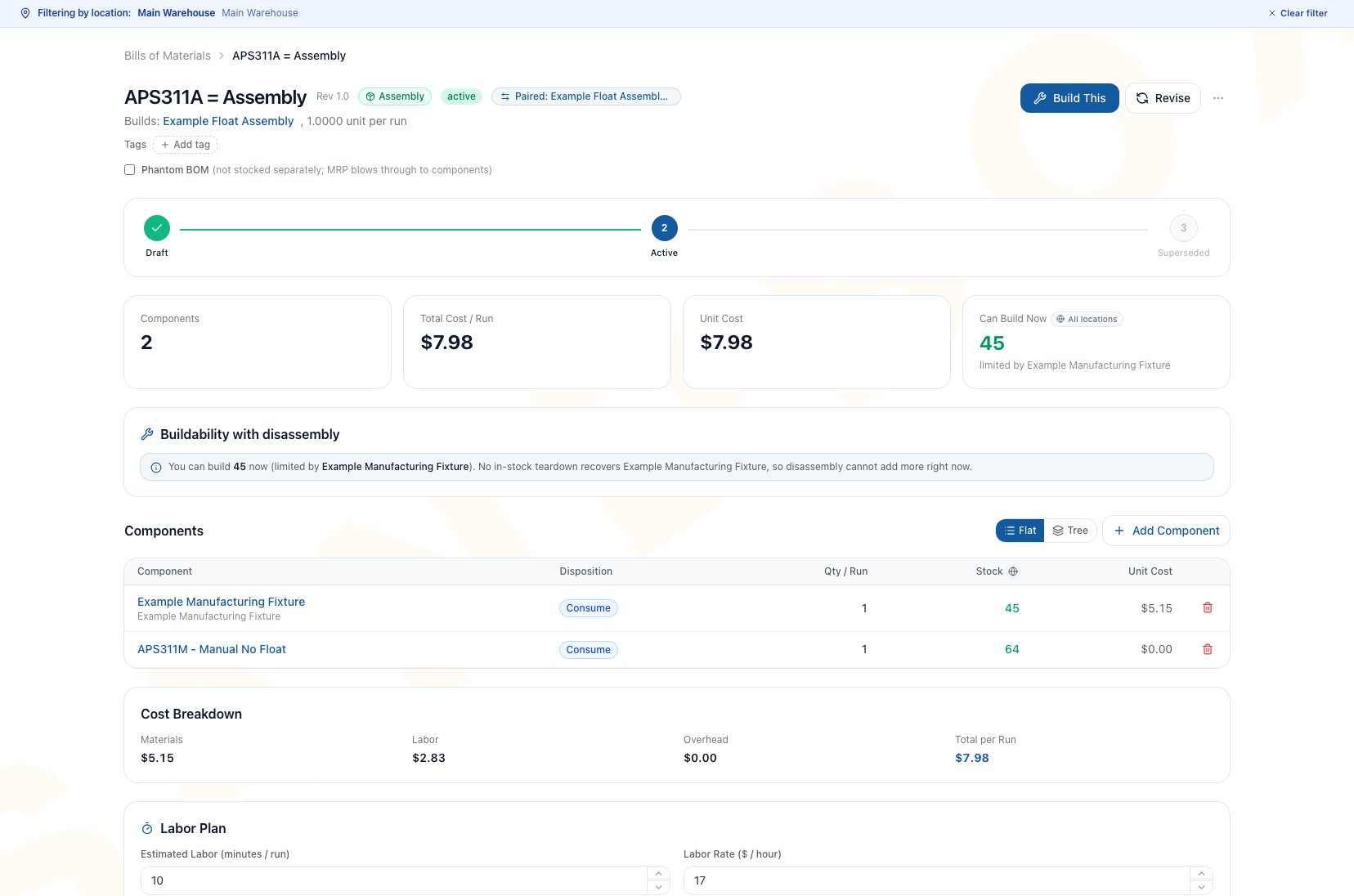 ## Check Availability Before Starting Work
### Prerequisites
* The BOM header and all material lines are complete.
* Quantities are correct per run.
* Current inventory balances are posted.
* For Conversion, all Consume and Add lines have been added.
* For a teardown-assisted plan, an Active Disassembly BOM can return at least one actual binding component and its source is in stock.
### Workflow
1. Open the exact BOM.
2. Confirm type, status, output quantity, and component lines.
3. Read **Can Build Now**, **Can Disassemble Now**, or **Can Convert Now**.
4. For Assembly, inspect every component tied at the constraining quantity and each quantity per run.
5. For Conversion, inspect both the source and every Consume or Add line. Do not assume the source is always the binding constraint.
6. Compare the estimate with the intended work-order quantity.
7. Open **Build This**, **Disassemble**, or **Convert** only when the recipe and quantity are appropriate.
8. On New Work Order, verify location, quantity, serial when required, dates, and availability again before creation or release.
## Check Availability Before Starting Work
### Prerequisites
* The BOM header and all material lines are complete.
* Quantities are correct per run.
* Current inventory balances are posted.
* For Conversion, all Consume and Add lines have been added.
* For a teardown-assisted plan, an Active Disassembly BOM can return at least one actual binding component and its source is in stock.
### Workflow
1. Open the exact BOM.
2. Confirm type, status, output quantity, and component lines.
3. Read **Can Build Now**, **Can Disassemble Now**, or **Can Convert Now**.
4. For Assembly, inspect every component tied at the constraining quantity and each quantity per run.
5. For Conversion, inspect both the source and every Consume or Add line. Do not assume the source is always the binding constraint.
6. Compare the estimate with the intended work-order quantity.
7. Open **Build This**, **Disassemble**, or **Convert** only when the recipe and quantity are appropriate.
8. On New Work Order, verify location, quantity, serial when required, dates, and availability again before creation or release.
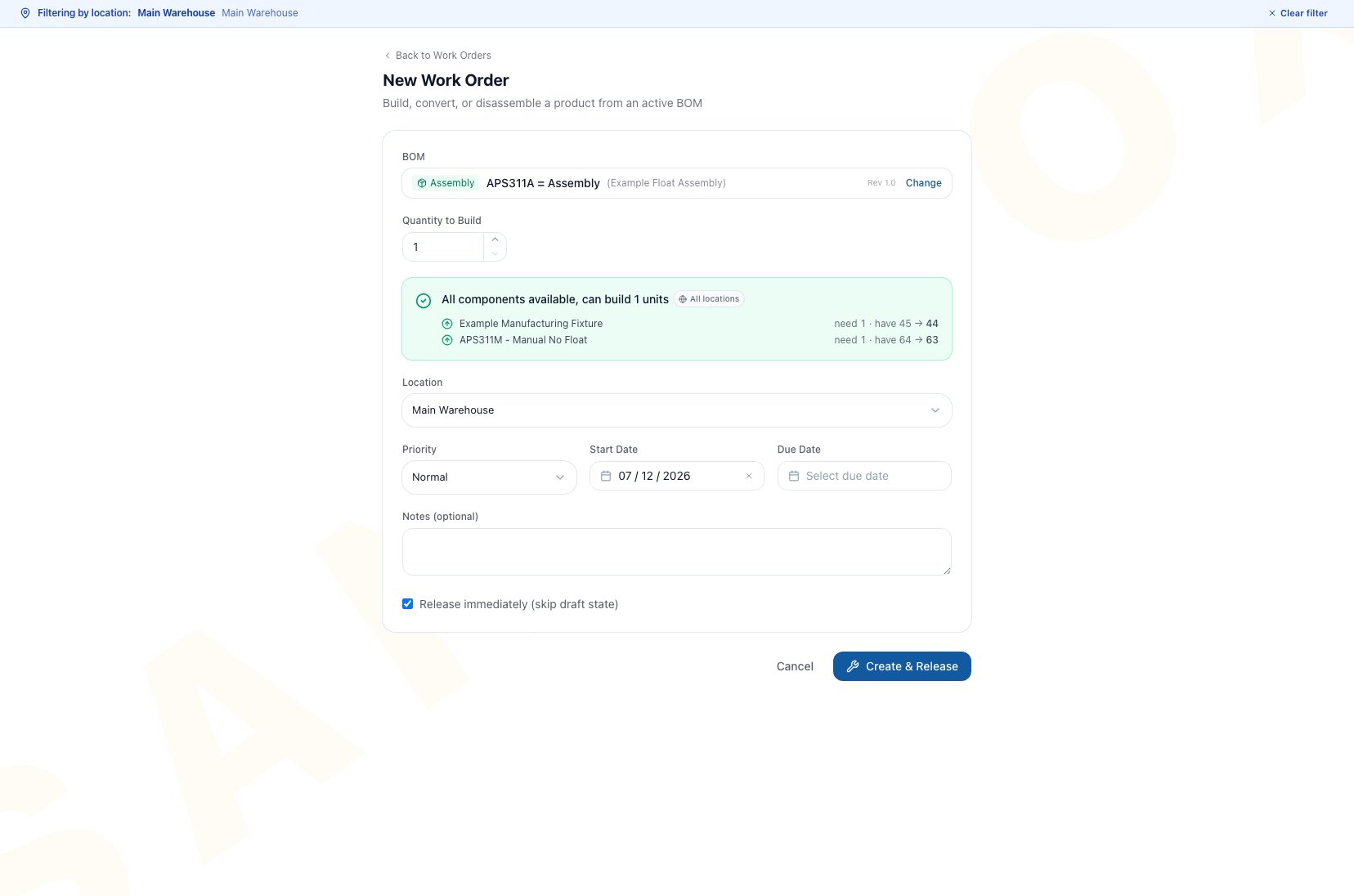 **Outcome:** A created work order records planned work. Inventory, actual cost, and accounting do not move merely because the availability card was read or a Draft work order was created.
## Understand Output Quantity Per Run
Assembly capacity is calculated in whole supported runs and then expressed as finished output. A recipe that produces multiple units per run can therefore show a finished quantity larger than the number of supported runs.
Review both values before changing a work-order quantity:
* **Quantity per Run** on each material line is the amount needed for one full run.
* **Output Quantity per Run** is what that full run produces.
* The least-supported required line limits the whole recipe.
Do not divide a component quantity by finished output unless that matches the physical process recorded in the BOM.
## Use Buildability With Disassembly
The **Buildability with disassembly** card appears for Assembly BOMs. It asks whether tearing down an in-stock source could recover a component that currently binds the assembly.
The calculation is deliberately narrow:
* It examines every component tied at the current binding quantity.
* It uses **Return to stock** lines from Active Disassembly BOMs.
* It requires available stock of that disassembly source.
* It looks one teardown level deep.
* It rechecks the assembly after the proposed recovery, so another component can become the new constraint.
* Recovering a nonbinding component does not increase the result.
When recovery would increase finished output, Arcus shows the teardown source and **Plan combined run**. Click it to open a preselected coordinated teardown-and-build plan, then verify both recipes, quantities, sequence, and location before creating work.
Each shortcut seeds one teardown source and the Assembly. When several components tie as binding constraints, review every tied component: one proposed teardown can recover one constraint while another tied requirement still caps the build.
When no candidate produces a real lift, Arcus says so. That is a valid result, not an error.
Teardown-assisted buildability is not a recursive promise. It does not search several levels, reserve the teardown source, or prove that the floor can complete both jobs in sequence.
## Review A Product's Manufacturing View
Open **Products**, select the specific physical product or child variant, and choose **Manufacturing**. The tab is not shown for kits, services, boxes, or variant parents.
Changing the supply method requires product edit access. Manufacturing viewing or work-order creation permission alone does not authorize that product change.
| Area | What to verify |
| ------------------------- | ----------------------------------------------------------------------------------------------------------- |
| **Supply method** | Use Manufactured when the product is normally built, or Both when it may be purchased or built |
| **Supply & Buildability** | Read On hand, Recoverable via disassembly, Buildable now, and Total potential supply as separate quantities |
| **Build Recipes (BOMs)** | Review type, revision, components, active work, status, and the default star |
| **Recent Work Orders** | Open recent production history for this product |
| **Where Used** | Find other BOMs that use this product as a component |
**Total potential supply** is on-hand stock plus the quantity recoverable from one-level teardown sources. It is not the number that can be built. **Buildable now** uses an Active Assembly recipe and prefers an Active default when one exists.
The product-level **Build This Product** shortcut currently opens an Active BOM but does not guarantee that it selected the default BOM. When recipe choice matters, open the intended row under **Build Recipes (BOMs)** and use **Build This** from that exact BOM.
## Distinguish BOM Availability From MRP
| BOM detail availability | MRP planning |
| ----------------------------------------------------------- | -------------------------------------------------------------------------------------------------------------------- |
| Evaluates the exact open recipe | Selects the qualifying default recipe for a product |
| Uses current entity-wide stock | Combines demand, stock, open supply, and forecast rules |
| Does not require the open BOM to be the default for display | Requires the BOM to be Active and Default |
| Does not create suggestions | Can create selected work orders and Draft purchase orders; work orders may auto-release under Manufacturing settings |
MRP also requires the product to be active, inventory tracked, and supplied as **Manufactured** or **Both**. An assembly marked **Phantom BOM** changes MRP explosion only: an active default phantom child is replaced by its leaf requirements instead of appearing as a separate planned subassembly. Phantom does not change this card, move stock, or create work.
See [MRP Planning](/support/manufacturing/mrp-planning) before treating a local availability result as a production plan.
The BOM detail **Plan combined run** action described above comes from a positive one-level teardown lift on that exact Assembly. It is separate from any recovery information shown during broader MRP review.
## Common Scenario: Recover The Binding Part
An Assembly BOM is blocked by a housing. Another in-stock product has an Active Disassembly BOM that returns the same housing.
1. Confirm the housing is an actual binding component on the Assembly and check whether another component is tied with it.
2. Review the teardown source quantity available entity-wide.
3. Confirm the Disassembly returns the housing rather than scrapping it.
4. Read the additional finished output after Arcus rechecks the full Assembly.
5. Choose **Plan combined run** only if the lift is positive.
6. Verify both exact recipes and the work sequence before release.
If a fastener becomes the new constraint after housing recovery, the displayed lift stops at that fastener's capacity.
## Troubleshooting And Refusals
* **Can Build Now is zero**: Inspect every tied binding Consume or Add requirement, quantity per run, and entity-wide balance.
* **Can Disassemble Now is zero**: The source product has no current available stock.
* **Can Convert Now looks too high**: Complete the material list. Both Consume and Add lines constrain conversion along with the source.
* **The location cannot support the displayed number**: The BOM card is entity-wide. Choose and verify the work-order location separately.
* **No teardown lift appears**: There may be no Active Disassembly that returns a tied binding component, no teardown source stock, or another tied component may still cap output at the same quantity.
* **A teardown recovers a useful part but adds no buildability**: The recovered part is not the current binding component.
* **Plan combined run is absent**: Arcus shows it only when a one-level teardown creates a positive lift and the user can create manufacturing work.
* **The Product Manufacturing tab is missing**: Open a specific physical product or child variant. Kits, services, boxes, and variant parents do not show it.
* **Build This Product opened an unexpected recipe**: Return to the product, open the intended Active BOM row, and use **Build This** from that exact recipe.
* **Completion later reports insufficient source stock**: Availability was not reserved. Recheck stock and use a supported completion quantity.
* **MRP ignores an available recipe**: Confirm the BOM is Active and Default and the product is active, inventory tracked, and supplied as Manufactured or Both.
## FAQ
Arcus can show a source-based preview while the Draft is incomplete. Add every Consume and Add requirement before relying on the number. On the current BOM page, **Activate** remains unavailable while no material line exists.
No. Both currently require stock and enter the same material-cost path. Their different labels communicate floor intent.
No. It is Assembly-only, examines the current tied binding components, and looks one disassembly level deep.
No. Recheck quantity and location before release and again before completion.
No. The current shortcut selects an Active BOM but does not guarantee the default. Open the intended BOM and use **Build This** when recipe selection matters.
## Related Guides
Verify recipe type, status, quantity per run, and the exact product revision.
Understand source stock, Add and Consume constraints, and Return to stock outcomes.
Correct line and output-quantity setup before relying on availability.
Turn qualifying active default recipes and broader supply-demand signals into suggestions.
Verify location and stock, then release and complete the planned work safely.
**Outcome:** A created work order records planned work. Inventory, actual cost, and accounting do not move merely because the availability card was read or a Draft work order was created.
## Understand Output Quantity Per Run
Assembly capacity is calculated in whole supported runs and then expressed as finished output. A recipe that produces multiple units per run can therefore show a finished quantity larger than the number of supported runs.
Review both values before changing a work-order quantity:
* **Quantity per Run** on each material line is the amount needed for one full run.
* **Output Quantity per Run** is what that full run produces.
* The least-supported required line limits the whole recipe.
Do not divide a component quantity by finished output unless that matches the physical process recorded in the BOM.
## Use Buildability With Disassembly
The **Buildability with disassembly** card appears for Assembly BOMs. It asks whether tearing down an in-stock source could recover a component that currently binds the assembly.
The calculation is deliberately narrow:
* It examines every component tied at the current binding quantity.
* It uses **Return to stock** lines from Active Disassembly BOMs.
* It requires available stock of that disassembly source.
* It looks one teardown level deep.
* It rechecks the assembly after the proposed recovery, so another component can become the new constraint.
* Recovering a nonbinding component does not increase the result.
When recovery would increase finished output, Arcus shows the teardown source and **Plan combined run**. Click it to open a preselected coordinated teardown-and-build plan, then verify both recipes, quantities, sequence, and location before creating work.
Each shortcut seeds one teardown source and the Assembly. When several components tie as binding constraints, review every tied component: one proposed teardown can recover one constraint while another tied requirement still caps the build.
When no candidate produces a real lift, Arcus says so. That is a valid result, not an error.
Teardown-assisted buildability is not a recursive promise. It does not search several levels, reserve the teardown source, or prove that the floor can complete both jobs in sequence.
## Review A Product's Manufacturing View
Open **Products**, select the specific physical product or child variant, and choose **Manufacturing**. The tab is not shown for kits, services, boxes, or variant parents.
Changing the supply method requires product edit access. Manufacturing viewing or work-order creation permission alone does not authorize that product change.
| Area | What to verify |
| ------------------------- | ----------------------------------------------------------------------------------------------------------- |
| **Supply method** | Use Manufactured when the product is normally built, or Both when it may be purchased or built |
| **Supply & Buildability** | Read On hand, Recoverable via disassembly, Buildable now, and Total potential supply as separate quantities |
| **Build Recipes (BOMs)** | Review type, revision, components, active work, status, and the default star |
| **Recent Work Orders** | Open recent production history for this product |
| **Where Used** | Find other BOMs that use this product as a component |
**Total potential supply** is on-hand stock plus the quantity recoverable from one-level teardown sources. It is not the number that can be built. **Buildable now** uses an Active Assembly recipe and prefers an Active default when one exists.
The product-level **Build This Product** shortcut currently opens an Active BOM but does not guarantee that it selected the default BOM. When recipe choice matters, open the intended row under **Build Recipes (BOMs)** and use **Build This** from that exact BOM.
## Distinguish BOM Availability From MRP
| BOM detail availability | MRP planning |
| ----------------------------------------------------------- | -------------------------------------------------------------------------------------------------------------------- |
| Evaluates the exact open recipe | Selects the qualifying default recipe for a product |
| Uses current entity-wide stock | Combines demand, stock, open supply, and forecast rules |
| Does not require the open BOM to be the default for display | Requires the BOM to be Active and Default |
| Does not create suggestions | Can create selected work orders and Draft purchase orders; work orders may auto-release under Manufacturing settings |
MRP also requires the product to be active, inventory tracked, and supplied as **Manufactured** or **Both**. An assembly marked **Phantom BOM** changes MRP explosion only: an active default phantom child is replaced by its leaf requirements instead of appearing as a separate planned subassembly. Phantom does not change this card, move stock, or create work.
See [MRP Planning](/support/manufacturing/mrp-planning) before treating a local availability result as a production plan.
The BOM detail **Plan combined run** action described above comes from a positive one-level teardown lift on that exact Assembly. It is separate from any recovery information shown during broader MRP review.
## Common Scenario: Recover The Binding Part
An Assembly BOM is blocked by a housing. Another in-stock product has an Active Disassembly BOM that returns the same housing.
1. Confirm the housing is an actual binding component on the Assembly and check whether another component is tied with it.
2. Review the teardown source quantity available entity-wide.
3. Confirm the Disassembly returns the housing rather than scrapping it.
4. Read the additional finished output after Arcus rechecks the full Assembly.
5. Choose **Plan combined run** only if the lift is positive.
6. Verify both exact recipes and the work sequence before release.
If a fastener becomes the new constraint after housing recovery, the displayed lift stops at that fastener's capacity.
## Troubleshooting And Refusals
* **Can Build Now is zero**: Inspect every tied binding Consume or Add requirement, quantity per run, and entity-wide balance.
* **Can Disassemble Now is zero**: The source product has no current available stock.
* **Can Convert Now looks too high**: Complete the material list. Both Consume and Add lines constrain conversion along with the source.
* **The location cannot support the displayed number**: The BOM card is entity-wide. Choose and verify the work-order location separately.
* **No teardown lift appears**: There may be no Active Disassembly that returns a tied binding component, no teardown source stock, or another tied component may still cap output at the same quantity.
* **A teardown recovers a useful part but adds no buildability**: The recovered part is not the current binding component.
* **Plan combined run is absent**: Arcus shows it only when a one-level teardown creates a positive lift and the user can create manufacturing work.
* **The Product Manufacturing tab is missing**: Open a specific physical product or child variant. Kits, services, boxes, and variant parents do not show it.
* **Build This Product opened an unexpected recipe**: Return to the product, open the intended Active BOM row, and use **Build This** from that exact recipe.
* **Completion later reports insufficient source stock**: Availability was not reserved. Recheck stock and use a supported completion quantity.
* **MRP ignores an available recipe**: Confirm the BOM is Active and Default and the product is active, inventory tracked, and supplied as Manufactured or Both.
## FAQ
Arcus can show a source-based preview while the Draft is incomplete. Add every Consume and Add requirement before relying on the number. On the current BOM page, **Activate** remains unavailable while no material line exists.
No. Both currently require stock and enter the same material-cost path. Their different labels communicate floor intent.
No. It is Assembly-only, examines the current tied binding components, and looks one disassembly level deep.
No. Recheck quantity and location before release and again before completion.
No. The current shortcut selects an Active BOM but does not guarantee the default. Open the intended BOM and use **Build This** when recipe selection matters.
## Related Guides
Verify recipe type, status, quantity per run, and the exact product revision.
Understand source stock, Add and Consume constraints, and Return to stock outcomes.
Correct line and output-quantity setup before relying on availability.
Turn qualifying active default recipes and broader supply-demand signals into suggestions.
Verify location and stock, then release and complete the planned work safely.