> ## Documentation Index
> Fetch the complete documentation index at: https://docs.arcuserp.com/llms.txt
> Use this file to discover all available pages before exploring further.
# BOM Lifecycle And Revisions
> Control Draft, Active, Superseded, and Archived BOMs, including revisions, comparison, defaults, deletion, and restore behavior.
Use the BOM lifecycle to keep production on an approved recipe without erasing the recipe that explains older work. Status, revision, and default are separate controls, so review all three before changing what planners and operators use.
Open **Manufacturing > Bills of Materials**, find the recipe, and open it. You need **manufacturing.view** to review it, **manufacturing.edit** to change status, default, or restore a recipe, **manufacturing.create** to create a revision or clone, and **manufacturing.delete** to delete or archive it.
## Before You Change Status
* Confirm the exact product, variant, BOM type, revision, and current status.
* Review open work that already references the recipe.
* Preserve any required source documents before permanent deletion.
* Decide whether the existing recipe must remain explainable for history.
* Identify the Active and Default recipe that planning should use after the change.
* Review a current reverse-recipe relationship before revising or retiring either side.
## Lifecycle Map
| Status | Intended use | Editable? | Normal next decision |
| -------------- | ---------------------------------------------- | ---------------------- | --------------------------------------------------------- |
| **Draft** | Build and review a new recipe | Yes | Add at least one line, verify the plan, then Activate |
| **Active** | Create current production work | Yes, with care | Revise when the physical recipe must change |
| **Superseded** | Preserve an older revision | Limited historical use | Compare, revise deliberately, or open the latest revision |
| **Archived** | Retain retired history outside normal planning | Read-only | Restore only when that history must re-enter review |
When a Superseded or Archived BOM has a newer Active sibling, **View latest revision** opens that current recipe without changing the historical record.
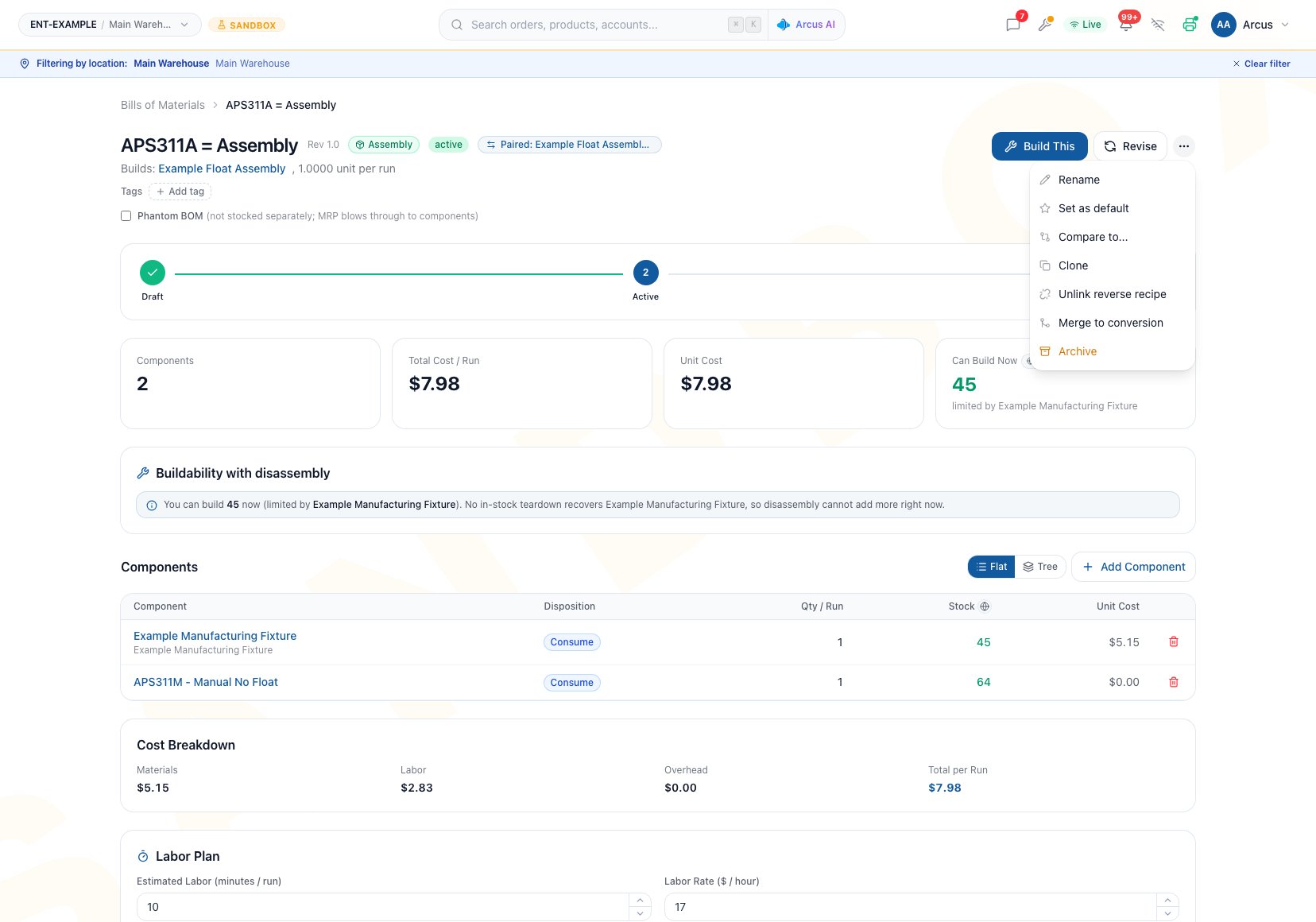 ## Activate A Draft
Before starting, confirm the product and any conversion source, output quantity per run, component lines, dispositions, labor plan, phantom choice, and documents. The current detail page does not provide controls to change the source product, output product, output quantity, or overhead after creation.
1. Open the Draft BOM.
2. Add and review every material line. On the current BOM page, **Activate** remains unavailable until at least one line exists.
3. Review cost and availability with current recorded costs and stock.
4. Confirm labor, documents, tags, and assembly-only phantom behavior where applicable.
5. Click **Activate**.
6. Confirm the status is **Active** before creating work.
**Outcome:** The type-specific action becomes available to authorized users. Activation does not automatically set the BOM as default.
Status changes do not move inventory or post accounting entries. Work-order actions own operational and financial posting.
Do not activate a draft whose source, output, output quantity, or required overhead is wrong. Those header controls are not currently editable on the detail page. Create a correct draft instead.
## Create A Revision
Use a revision when a live physical recipe must change but the old recipe must remain explainable.
1. Open the Active or Superseded BOM and click **Revise**.
2. Enter a revision label, or leave it blank for the suggested increment.
3. Keep **Supersede the current revision** selected when new work should move away from the current recipe.
4. Create the revision.
5. Review the new Draft before activation.
6. Re-enable **Phantom BOM** intentionally when the new assembly revision should remain phantom.
7. Activate the new revision and set it as default only after review.
The revision copies the recipe header, material lines, cost allocations, labor plan, auto-book choice, instructions, and notes into a new Draft. It does **not** copy the phantom flag. The new revision does not start as default.
When supersede is selected, the old BOM becomes Superseded and loses the default flag. If the old BOM had a paired reverse recipe, the pairing moves to the new revision. The previous revision no longer holds that link.
**Outcome:** Historical work still points to the old recipe, while the new Draft can be reviewed without silently changing the old record.
## Rename A Recipe Label
Use **Rename** when only the searchable label is unclear. Use a revision when materials, quantities, dispositions, source, output, labor, or physical instructions change.
1. Open a nonarchived BOM and choose **Rename**.
2. Enter a different name with 255 characters or fewer.
3. Click **Save**.
4. Confirm the new label on the same recipe and revision.
Blank, unchanged, and overlength names cannot be saved.
**Outcome:** The label changes in place. The recipe, status, revision, default, work history, inventory, and accounting remain unchanged.
## Compare Revisions
1. Open a BOM and choose **Compare to...** from the action menu.
2. Select another revision for the same product and variant.
3. Review **Header Changes**, **Component Changes**, and the limited **Cost Comparison**.
4. Resolve unexpected added, removed, or changed lines before activation.
5. Separately review Cost Breakdown, Recovery Preview, instructions, documents, and allocation controls when they apply.
Comparison refuses the same record and BOMs for a different product or variant. The picker can show a product sibling that cannot be compared because its variant differs. If there is no valid sibling revision, the action may be absent or the picker will have no usable choice.
Cost Comparison is a limited component view based on current base-product costs and raw line totals. It does not include source input cost, labor, overhead, return netting, recovery allocation, or changes made only to allocation percentages or instructions. It is a present-day planning aid, not proof of historical or complete recipe cost.
## Choose The Default Safely
1. Open the intended recipe and confirm its product, revision, and status.
2. Use the star on the BOM list or **Set as default** on the detail page.
3. Confirm that the intended row now shows the default star.
4. For MRP, verify the same BOM is Active and the product planning settings qualify.
Setting one BOM as default clears the default flag from other recipes for that product or variant.
Arcus allows any nonarchived BOM to receive the default flag. That includes Draft and Superseded records, but those states are not valid MRP recipes. For MRP, all of these must be true:
* The BOM is **Active** and **Default**.
* The product is active.
* The product tracks inventory.
* Its supply method is **Manufactured** or **Both**.
**Outcome:** MRP can use the qualifying active default. Other active recipes remain available when a planner opens the exact BOM intentionally.
## Clone Only As A Starting Point
Cloning creates a new Draft, but it should not be treated as a guaranteed correct cross-product copy.
1. Prefer cloning for a closely related draft, especially for the same product.
2. Verify the target product, source and output identity, output quantity, every line, labor plan, and phantom setting.
3. If the source, output, output quantity, or required overhead should differ, create a new BOM instead. The current detail page cannot correct those controls after creation.
4. Activate only after the new draft independently passes review.
**Outcome:** The clone remains a Draft and does not change the source recipe.
## Archive Or Permanently Delete
Open the action menu and choose the available retirement action. Arcus decides the safe result from work-order history.
| Existing history | Result | Consequences |
| ------------------------------------------------------------------- | ---------------------- | -------------------------------------------------------------------------------------------------------------------------- |
| No work order has ever referenced the BOM, including cancelled work | **Delete permanently** | Removes the BOM record, lines, tags, and reverse pairing; attachments are no longer available from the deleted BOM |
| Any work order has referenced the BOM | **Archive** | Preserves history, clears the default and reverse pairing, hides the BOM from normal lists and MRP, and makes it read-only |
| A Draft, Released, or In Progress work order still references it | Refused | Complete or cancel the listed in-flight work before trying again |
Read the confirmation carefully. Permanent BOM deletion cannot be undone. A new work-order reference found after the dialog opened can change the result or block the action.
## Restore An Archived BOM
1. Open **Manufacturing > Bills of Materials**.
2. Include **Archived** in the status filter.
3. Open the archived recipe and click **Restore**.
4. Review the returned status, recipe, and documents.
5. Revise or reactivate only after confirming that the process is still valid.
6. Set a default deliberately if planning should use the restored recipe.
Restore returns the BOM as **Draft** when no active sibling exists, or **Superseded** when another active revision already leads. It never restores the default flag or a former reverse-recipe link.
**Outcome:** The recipe re-enters controlled review without silently replacing a current active recipe or rewriting inventory, cost, or accounting history.
## Common Scenario: Release A Safer Recipe
A shop changes one component on its active assembly recipe.
1. Create a revision and leave **Supersede the current revision** selected.
2. Replace the component in the new Draft and verify quantities, availability, cost, and instructions.
3. Re-enable phantom behavior if the old assembly used it and the new revision should too.
4. Activate the new revision.
5. Set it as default after approval.
6. Compare it to the Superseded recipe and retain the old record for work-order history.
This avoids rewriting the recipe behind completed or open work.
## Troubleshooting And Refusals
* **Activate is unavailable**: On the BOM page, add at least one line and confirm you have edit permission.
* **Revise is unavailable**: Confirm you have create permission and that the current status supports a revision.
* **The revision lost Phantom BOM**: This is expected. Revision does not copy the phantom flag; re-enable it intentionally on a qualifying assembly.
* **MRP stopped using the product after revision**: Confirm the new revision is Active and Default and that product planning settings still qualify.
* **Compare has no usable choice**: Arcus only compares sibling BOMs for the same product and variant. A product sibling for another variant can appear in the picker but cannot be compared.
* **Delete became Archive**: The BOM has work-order history. Arcus preserves the recipe for traceability.
* **Retirement is blocked**: Complete or cancel referencing Draft, Released, or In Progress work orders first.
* **Restore returned Superseded**: Another active sibling already exists. The restored record will not replace it automatically.
* **The restored reverse link is missing**: Restore does not recreate reverse pairing. Review both recipes and their current lifecycle state; do not assume the former relationship still exists.
## FAQ
Technically yes, as long as it is not Archived. It will still not qualify for MRP because MRP requires the default BOM to also be Active.
No. The new revision is a Draft without the phantom flag. Re-enable it intentionally only when the assembly should still explode through MRP.
A current pairing moves to the new revision. Archiving clears the link, and restoring later does not bring it back.
No. Permanent BOM deletion cannot be undone, and its attachments are no longer available from that BOM. Preserve any required source files before confirming deletion.
## Related Guides
Find a recipe and choose the correct production type.
Build and verify a new Draft before activation.
Generate, review, unlink, and merge paired recipes.
Attach and retain the instructions that support each controlled revision.
See how active default BOMs become planning candidates.
## Activate A Draft
Before starting, confirm the product and any conversion source, output quantity per run, component lines, dispositions, labor plan, phantom choice, and documents. The current detail page does not provide controls to change the source product, output product, output quantity, or overhead after creation.
1. Open the Draft BOM.
2. Add and review every material line. On the current BOM page, **Activate** remains unavailable until at least one line exists.
3. Review cost and availability with current recorded costs and stock.
4. Confirm labor, documents, tags, and assembly-only phantom behavior where applicable.
5. Click **Activate**.
6. Confirm the status is **Active** before creating work.
**Outcome:** The type-specific action becomes available to authorized users. Activation does not automatically set the BOM as default.
Status changes do not move inventory or post accounting entries. Work-order actions own operational and financial posting.
Do not activate a draft whose source, output, output quantity, or required overhead is wrong. Those header controls are not currently editable on the detail page. Create a correct draft instead.
## Create A Revision
Use a revision when a live physical recipe must change but the old recipe must remain explainable.
1. Open the Active or Superseded BOM and click **Revise**.
2. Enter a revision label, or leave it blank for the suggested increment.
3. Keep **Supersede the current revision** selected when new work should move away from the current recipe.
4. Create the revision.
5. Review the new Draft before activation.
6. Re-enable **Phantom BOM** intentionally when the new assembly revision should remain phantom.
7. Activate the new revision and set it as default only after review.
The revision copies the recipe header, material lines, cost allocations, labor plan, auto-book choice, instructions, and notes into a new Draft. It does **not** copy the phantom flag. The new revision does not start as default.
When supersede is selected, the old BOM becomes Superseded and loses the default flag. If the old BOM had a paired reverse recipe, the pairing moves to the new revision. The previous revision no longer holds that link.
**Outcome:** Historical work still points to the old recipe, while the new Draft can be reviewed without silently changing the old record.
## Rename A Recipe Label
Use **Rename** when only the searchable label is unclear. Use a revision when materials, quantities, dispositions, source, output, labor, or physical instructions change.
1. Open a nonarchived BOM and choose **Rename**.
2. Enter a different name with 255 characters or fewer.
3. Click **Save**.
4. Confirm the new label on the same recipe and revision.
Blank, unchanged, and overlength names cannot be saved.
**Outcome:** The label changes in place. The recipe, status, revision, default, work history, inventory, and accounting remain unchanged.
## Compare Revisions
1. Open a BOM and choose **Compare to...** from the action menu.
2. Select another revision for the same product and variant.
3. Review **Header Changes**, **Component Changes**, and the limited **Cost Comparison**.
4. Resolve unexpected added, removed, or changed lines before activation.
5. Separately review Cost Breakdown, Recovery Preview, instructions, documents, and allocation controls when they apply.
Comparison refuses the same record and BOMs for a different product or variant. The picker can show a product sibling that cannot be compared because its variant differs. If there is no valid sibling revision, the action may be absent or the picker will have no usable choice.
Cost Comparison is a limited component view based on current base-product costs and raw line totals. It does not include source input cost, labor, overhead, return netting, recovery allocation, or changes made only to allocation percentages or instructions. It is a present-day planning aid, not proof of historical or complete recipe cost.
## Choose The Default Safely
1. Open the intended recipe and confirm its product, revision, and status.
2. Use the star on the BOM list or **Set as default** on the detail page.
3. Confirm that the intended row now shows the default star.
4. For MRP, verify the same BOM is Active and the product planning settings qualify.
Setting one BOM as default clears the default flag from other recipes for that product or variant.
Arcus allows any nonarchived BOM to receive the default flag. That includes Draft and Superseded records, but those states are not valid MRP recipes. For MRP, all of these must be true:
* The BOM is **Active** and **Default**.
* The product is active.
* The product tracks inventory.
* Its supply method is **Manufactured** or **Both**.
**Outcome:** MRP can use the qualifying active default. Other active recipes remain available when a planner opens the exact BOM intentionally.
## Clone Only As A Starting Point
Cloning creates a new Draft, but it should not be treated as a guaranteed correct cross-product copy.
1. Prefer cloning for a closely related draft, especially for the same product.
2. Verify the target product, source and output identity, output quantity, every line, labor plan, and phantom setting.
3. If the source, output, output quantity, or required overhead should differ, create a new BOM instead. The current detail page cannot correct those controls after creation.
4. Activate only after the new draft independently passes review.
**Outcome:** The clone remains a Draft and does not change the source recipe.
## Archive Or Permanently Delete
Open the action menu and choose the available retirement action. Arcus decides the safe result from work-order history.
| Existing history | Result | Consequences |
| ------------------------------------------------------------------- | ---------------------- | -------------------------------------------------------------------------------------------------------------------------- |
| No work order has ever referenced the BOM, including cancelled work | **Delete permanently** | Removes the BOM record, lines, tags, and reverse pairing; attachments are no longer available from the deleted BOM |
| Any work order has referenced the BOM | **Archive** | Preserves history, clears the default and reverse pairing, hides the BOM from normal lists and MRP, and makes it read-only |
| A Draft, Released, or In Progress work order still references it | Refused | Complete or cancel the listed in-flight work before trying again |
Read the confirmation carefully. Permanent BOM deletion cannot be undone. A new work-order reference found after the dialog opened can change the result or block the action.
## Restore An Archived BOM
1. Open **Manufacturing > Bills of Materials**.
2. Include **Archived** in the status filter.
3. Open the archived recipe and click **Restore**.
4. Review the returned status, recipe, and documents.
5. Revise or reactivate only after confirming that the process is still valid.
6. Set a default deliberately if planning should use the restored recipe.
Restore returns the BOM as **Draft** when no active sibling exists, or **Superseded** when another active revision already leads. It never restores the default flag or a former reverse-recipe link.
**Outcome:** The recipe re-enters controlled review without silently replacing a current active recipe or rewriting inventory, cost, or accounting history.
## Common Scenario: Release A Safer Recipe
A shop changes one component on its active assembly recipe.
1. Create a revision and leave **Supersede the current revision** selected.
2. Replace the component in the new Draft and verify quantities, availability, cost, and instructions.
3. Re-enable phantom behavior if the old assembly used it and the new revision should too.
4. Activate the new revision.
5. Set it as default after approval.
6. Compare it to the Superseded recipe and retain the old record for work-order history.
This avoids rewriting the recipe behind completed or open work.
## Troubleshooting And Refusals
* **Activate is unavailable**: On the BOM page, add at least one line and confirm you have edit permission.
* **Revise is unavailable**: Confirm you have create permission and that the current status supports a revision.
* **The revision lost Phantom BOM**: This is expected. Revision does not copy the phantom flag; re-enable it intentionally on a qualifying assembly.
* **MRP stopped using the product after revision**: Confirm the new revision is Active and Default and that product planning settings still qualify.
* **Compare has no usable choice**: Arcus only compares sibling BOMs for the same product and variant. A product sibling for another variant can appear in the picker but cannot be compared.
* **Delete became Archive**: The BOM has work-order history. Arcus preserves the recipe for traceability.
* **Retirement is blocked**: Complete or cancel referencing Draft, Released, or In Progress work orders first.
* **Restore returned Superseded**: Another active sibling already exists. The restored record will not replace it automatically.
* **The restored reverse link is missing**: Restore does not recreate reverse pairing. Review both recipes and their current lifecycle state; do not assume the former relationship still exists.
## FAQ
Technically yes, as long as it is not Archived. It will still not qualify for MRP because MRP requires the default BOM to also be Active.
No. The new revision is a Draft without the phantom flag. Re-enable it intentionally only when the assembly should still explode through MRP.
A current pairing moves to the new revision. Archiving clears the link, and restoring later does not bring it back.
No. Permanent BOM deletion cannot be undone, and its attachments are no longer available from that BOM. Preserve any required source files before confirming deletion.
## Related Guides
Find a recipe and choose the correct production type.
Build and verify a new Draft before activation.
Generate, review, unlink, and merge paired recipes.
Attach and retain the instructions that support each controlled revision.
See how active default BOMs become planning candidates.