> ## Documentation Index
> Fetch the complete documentation index at: https://docs.arcuserp.com/llms.txt
> Use this file to discover all available pages before exploring further.
# BOM Documents
> Attach, preview, download, remove, and retain controlled work instructions on a Bill of Materials.
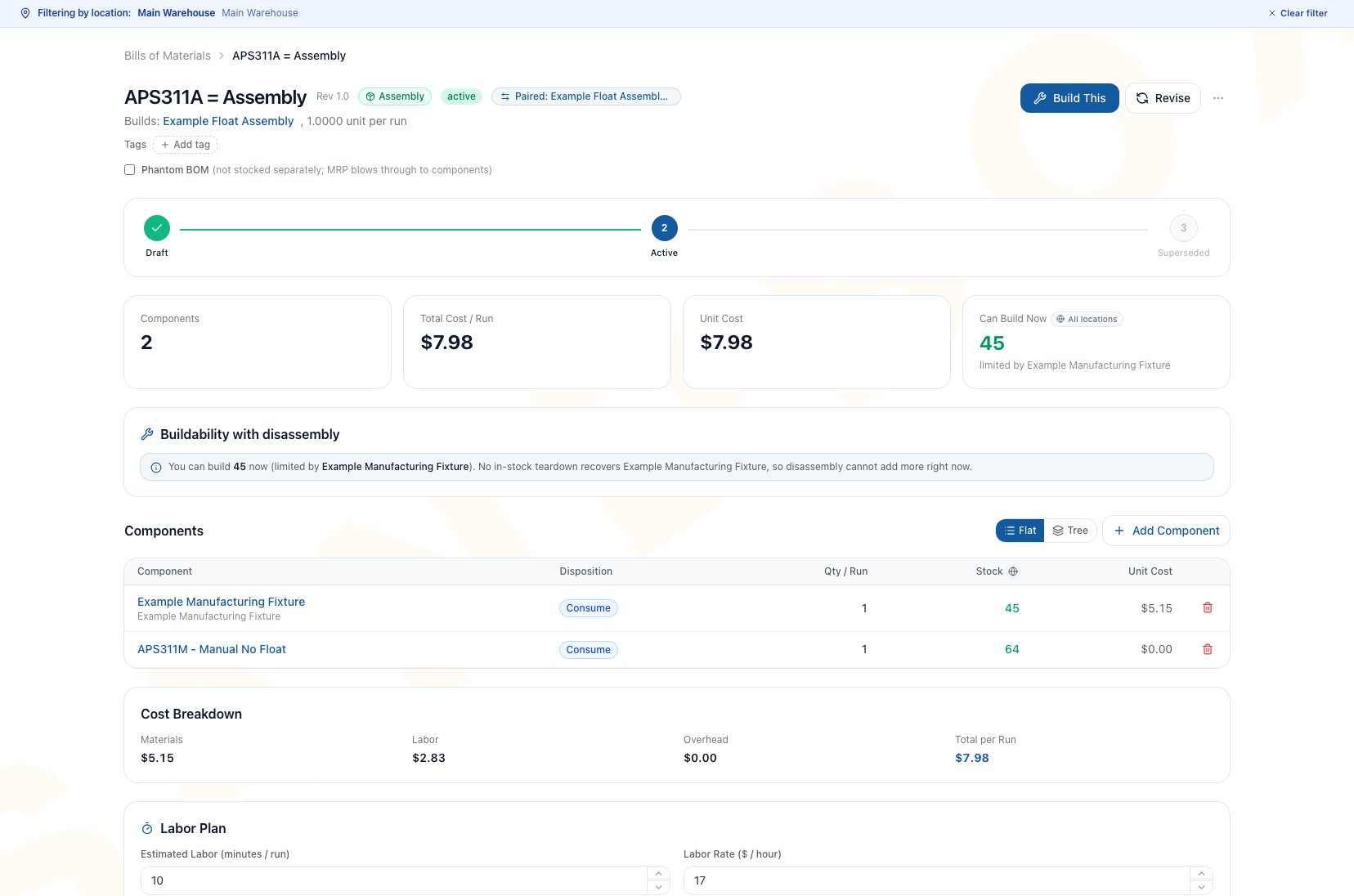
Use **Documents** on a BOM to keep the recipe and its supporting work instruction together. Appropriate attachments include approved setup instructions, drawings, specifications, inspection criteria, and safe reference images.
Open **Manufacturing > Bills of Materials**, open the recipe, and scroll to **Documents**. You need **manufacturing.view** to open or download an attachment and **manufacturing.edit** to upload or delete one. Archived BOMs are read-only.
 ## Decide What Belongs On The BOM
| Attach to the BOM | Keep elsewhere |
| ------------------------------------------------------ | ----------------------------------------------------------- |
| Instructions specific to this recipe or revision | General company policy that applies to every process |
| Approved drawing or specification used for this output | Unapproved personal notes |
| Setup or inspection aid the operator needs at the job | Credentials, verification codes, or secrets |
| A current controlled reference file | Obsolete copies that could conflict with the active process |
Use a filename that operators can identify before opening it. Arcus does not replace your document-control policy, approval process, or revision naming standard.
## Upload A Document
### Prerequisites
* The BOM is not Archived.
* You have edit permission.
* The file is approved for the users who can open the recipe.
* Its filename clearly identifies the instruction and revision.
### Workflow
1. Open the BOM detail page.
2. Scroll to **Documents**.
3. Click **Upload**, or drag a file into the area that says **Click or drag a file to upload**.
4. Wait for the attachment to appear.
5. Click the filename or the view action to confirm it opens.
6. Use **Upload another document** when another approved file is required.
**Outcome:** The document is attached to this BOM and remains available to users who can view the recipe. Uploading a new file does not revise or activate the BOM, move inventory, change work-order cost, or post an accounting entry.
Open the uploaded file before releasing work. A recognizable filename does not prove that the correct revision or complete document was attached.
## Preview Or Download
1. Click the filename or view action.
2. Review PDFs and supported images in the viewer when a preview is available.
3. If the viewer says **Download to view**, use the download action and open the file with its appropriate application.
4. Use the direct **Download** action whenever the original file is required.
| Viewer state | Meaning | Next action |
| ---------------------------- | ---------------------------------------------- | ------------------------------------------------------------------ |
| PDF or image preview appears | Arcus can display the file inline | Confirm it is the expected controlled revision |
| **Download to view** | The file is attached but has no inline preview | Download and open it locally |
| File is still processing | A usable file URL is not ready yet | Wait, reopen the recipe, and try again |
| **No documents attached** | This BOM has no current attachment | Upload the required file before work if the process depends on one |
## Remove An Obsolete Attachment
Neither BOM Documents nor the current Document Manager exposes a self-service restore action. The confirmation may mention recovery through Document Manager, but that page currently lists active documents and offers no restore control. Retain the approved source file and verify that the attachment is obsolete before confirming deletion.
1. Confirm the file is obsolete for this BOM.
2. Choose the delete action beside the document.
3. Review **Delete document?**.
4. Confirm the deletion.
5. Verify the obsolete file no longer appears on the BOM.
**Outcome:** The document no longer appears on the BOM. There is no current self-service restore action in BOM Documents or Document Manager, so confirm the source file is retained under your document-control policy before deleting it.
Deleting an attachment does not alter the BOM's status or create a new revision. When a file change explains a physical recipe change, revise the BOM first and attach the new controlled file to the new Draft.
## What Happens When The BOM Is Retired
| BOM action | Document result |
| ------------------------------------- | --------------------------------------------------------------------------------------------- |
| Archive a BOM with work-order history | Documents remain available on the read-only archived recipe |
| Restore an archived BOM | Existing attachments remain with the restored recipe for review |
| Permanently delete a never-used BOM | Its documents are no longer available from the deleted BOM, and the recipe cannot be restored |
Permanent BOM deletion remains irreversible. Preserve every required source file before confirming it because neither the BOM nor its attachment list can be restored from the current BOM interface.
## Common Scenario: Issue A New Work Instruction
A process change requires both a component change and a new work instruction.
1. Create a BOM revision instead of rewriting the active historical recipe.
2. Update the material line on the new Draft.
3. Upload the approved instruction to that Draft.
4. Open the attachment and verify its revision.
5. Activate and default the new BOM only after recipe and document approval.
6. Leave the old attachment with the old recipe so historical work remains explainable.
This keeps the instruction aligned with the recipe that operators actually used.
## Troubleshooting And Refusals
* **Upload is missing**: The BOM is Archived or you do not have edit permission.
* **The document does not preview**: Use **Download to view**. Not every attached format has an inline viewer.
* **The file is still processing**: Wait and reopen the recipe before retrying. Do not upload repeated copies until you know the first upload failed.
* **The uploaded file is wrong**: Delete it from the BOM, confirm it disappears, and upload the approved file.
* **Documents are read-only**: Archived BOMs and view-only users can open or download files but cannot upload or remove them.
* **The BOM was permanently deleted**: Its documents are no longer available from that BOM, and the BOM itself cannot be restored.
## FAQ
No. It only attaches the file to the current BOM. Create a revision when the underlying physical recipe also changes.
The attachment is available, but Arcus does not have an inline preview for that file. Download it and use the appropriate local application.
Treat it as final for self-service recovery. Neither BOM Documents nor the current Document Manager exposes a restore action, so retain the approved source file before confirming deletion.
Yes, if they can view the recipe. The documents are read-only: upload and delete controls are unavailable.
## Related Guides
Attach approved instructions before activating a new recipe.
Keep documents aligned with revisions, archive behavior, and permanent deletion.
Find the exact recipe and verify its current status.
Run the controlled recipe after the floor has reviewed its instructions.
## Decide What Belongs On The BOM
| Attach to the BOM | Keep elsewhere |
| ------------------------------------------------------ | ----------------------------------------------------------- |
| Instructions specific to this recipe or revision | General company policy that applies to every process |
| Approved drawing or specification used for this output | Unapproved personal notes |
| Setup or inspection aid the operator needs at the job | Credentials, verification codes, or secrets |
| A current controlled reference file | Obsolete copies that could conflict with the active process |
Use a filename that operators can identify before opening it. Arcus does not replace your document-control policy, approval process, or revision naming standard.
## Upload A Document
### Prerequisites
* The BOM is not Archived.
* You have edit permission.
* The file is approved for the users who can open the recipe.
* Its filename clearly identifies the instruction and revision.
### Workflow
1. Open the BOM detail page.
2. Scroll to **Documents**.
3. Click **Upload**, or drag a file into the area that says **Click or drag a file to upload**.
4. Wait for the attachment to appear.
5. Click the filename or the view action to confirm it opens.
6. Use **Upload another document** when another approved file is required.
**Outcome:** The document is attached to this BOM and remains available to users who can view the recipe. Uploading a new file does not revise or activate the BOM, move inventory, change work-order cost, or post an accounting entry.
Open the uploaded file before releasing work. A recognizable filename does not prove that the correct revision or complete document was attached.
## Preview Or Download
1. Click the filename or view action.
2. Review PDFs and supported images in the viewer when a preview is available.
3. If the viewer says **Download to view**, use the download action and open the file with its appropriate application.
4. Use the direct **Download** action whenever the original file is required.
| Viewer state | Meaning | Next action |
| ---------------------------- | ---------------------------------------------- | ------------------------------------------------------------------ |
| PDF or image preview appears | Arcus can display the file inline | Confirm it is the expected controlled revision |
| **Download to view** | The file is attached but has no inline preview | Download and open it locally |
| File is still processing | A usable file URL is not ready yet | Wait, reopen the recipe, and try again |
| **No documents attached** | This BOM has no current attachment | Upload the required file before work if the process depends on one |
## Remove An Obsolete Attachment
Neither BOM Documents nor the current Document Manager exposes a self-service restore action. The confirmation may mention recovery through Document Manager, but that page currently lists active documents and offers no restore control. Retain the approved source file and verify that the attachment is obsolete before confirming deletion.
1. Confirm the file is obsolete for this BOM.
2. Choose the delete action beside the document.
3. Review **Delete document?**.
4. Confirm the deletion.
5. Verify the obsolete file no longer appears on the BOM.
**Outcome:** The document no longer appears on the BOM. There is no current self-service restore action in BOM Documents or Document Manager, so confirm the source file is retained under your document-control policy before deleting it.
Deleting an attachment does not alter the BOM's status or create a new revision. When a file change explains a physical recipe change, revise the BOM first and attach the new controlled file to the new Draft.
## What Happens When The BOM Is Retired
| BOM action | Document result |
| ------------------------------------- | --------------------------------------------------------------------------------------------- |
| Archive a BOM with work-order history | Documents remain available on the read-only archived recipe |
| Restore an archived BOM | Existing attachments remain with the restored recipe for review |
| Permanently delete a never-used BOM | Its documents are no longer available from the deleted BOM, and the recipe cannot be restored |
Permanent BOM deletion remains irreversible. Preserve every required source file before confirming it because neither the BOM nor its attachment list can be restored from the current BOM interface.
## Common Scenario: Issue A New Work Instruction
A process change requires both a component change and a new work instruction.
1. Create a BOM revision instead of rewriting the active historical recipe.
2. Update the material line on the new Draft.
3. Upload the approved instruction to that Draft.
4. Open the attachment and verify its revision.
5. Activate and default the new BOM only after recipe and document approval.
6. Leave the old attachment with the old recipe so historical work remains explainable.
This keeps the instruction aligned with the recipe that operators actually used.
## Troubleshooting And Refusals
* **Upload is missing**: The BOM is Archived or you do not have edit permission.
* **The document does not preview**: Use **Download to view**. Not every attached format has an inline viewer.
* **The file is still processing**: Wait and reopen the recipe before retrying. Do not upload repeated copies until you know the first upload failed.
* **The uploaded file is wrong**: Delete it from the BOM, confirm it disappears, and upload the approved file.
* **Documents are read-only**: Archived BOMs and view-only users can open or download files but cannot upload or remove them.
* **The BOM was permanently deleted**: Its documents are no longer available from that BOM, and the BOM itself cannot be restored.
## FAQ
No. It only attaches the file to the current BOM. Create a revision when the underlying physical recipe also changes.
The attachment is available, but Arcus does not have an inline preview for that file. Download it and use the appropriate local application.
Treat it as final for self-service recovery. Neither BOM Documents nor the current Document Manager exposes a restore action, so retain the approved source file before confirming deletion.
Yes, if they can view the recipe. The documents are read-only: upload and delete controls are unavailable.
## Related Guides
Attach approved instructions before activating a new recipe.
Keep documents aligned with revisions, archive behavior, and permanent deletion.
Find the exact recipe and verify its current status.
Run the controlled recipe after the floor has reviewed its instructions.