> ## Documentation Index
> Fetch the complete documentation index at: https://docs.arcuserp.com/llms.txt
> Use this file to discover all available pages before exploring further.
# Manufacturing
> Choose and control Arcus manufacturing workflows, from product recipes and planning through materials, labor, completion, inventory, and cost review.
Manufacturing in Arcus connects a product recipe to the work performed on the floor. Use it to build an assembly, take a product apart, convert one product into another, plan shortages, and review the resulting material, labor, inventory, and accounting activity.
This guide is the starting point. Follow the linked task articles for the exact lifecycle action you need.
## Choose Your Starting Point
| What you need to do | Start here | Expected result |
| ----------------------------------------- | --------------------------------------------------- | ---------------------------------------------------------------------------------------- |
| Define how a product is built | **Manufacturing > Bills of Materials** | An Assembly BOM that can move from Draft to Active |
| Recover components from a product | **Bills of Materials > New BOM > Disassembly** | A teardown recipe with Return to stock or Scrap recovery lines |
| Turn one product into another | **Bills of Materials > New BOM > Conversion** | A recipe that consumes source or input products and produces the target product |
| Run one known job | **Manufacturing > Work Orders > New Work Order** | One standalone work order based on an active BOM |
| Coordinate two or more related jobs | **Manufacturing > Work Orders > Plan Combined Run** | A coordination group with independent Draft member work orders |
| Calculate what to build and buy | **Manufacturing > Production Planning** | MRP suggestions based on demand, stock, open supply, and active default BOMs |
| Review open work or completed performance | **Manufacturing > Reports** | WIP, variance, build-history, or component-usage results |
| Change company-wide creation defaults | **Settings > Products & Pricing > Manufacturing** | Defaults for new BOM overhead, timer labor, work-order release, and timer start behavior |
Start with the decision, not the screen. A BOM defines the recipe, a work order records one execution, a combined run coordinates multiple executions, and MRP recommends future work and purchases.
## Understand The Recipe Types
| BOM type | Use it when | Primary quantity |
| --------------- | ------------------------------------------------------------------ | ----------------------- |
| **Assembly** | Components are consumed to create a finished product | Quantity to build |
| **Disassembly** | A source product is consumed and components are recovered | Quantity to disassemble |
| **Conversion** | One or more products are consumed and different products are added | Quantity to convert |
All three types use the same Draft, Active, and Superseded recipe lifecycle. Only an Active BOM can be selected for new work. Use [BOM Lifecycle](/support/manufacturing/bom-lifecycle) for activation, revision, default, supersede, archive, and restore decisions.
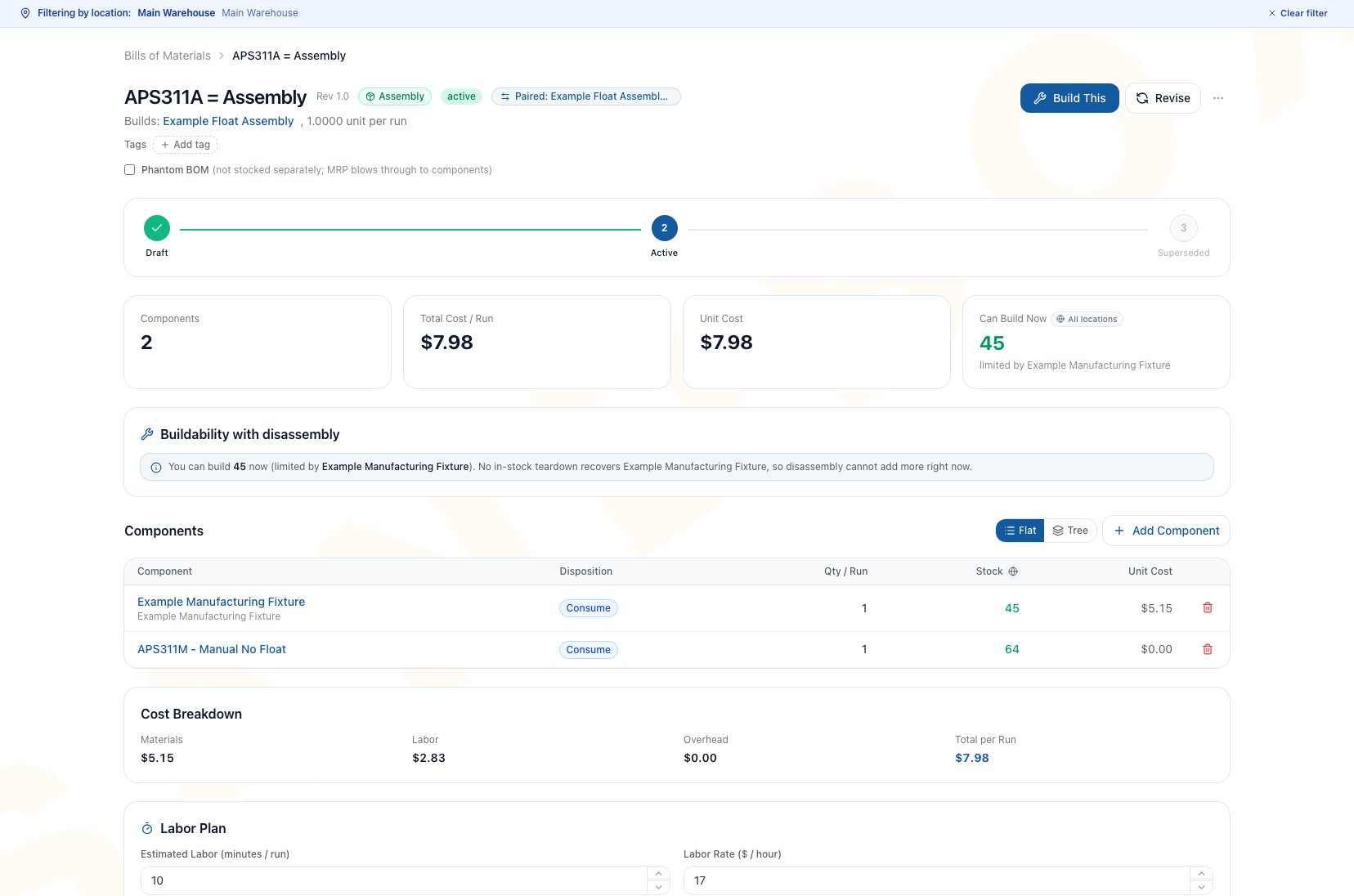 Use [Bills of Materials](/support/manufacturing/boms) for recipe types, lifecycle, defaults, revisions, phantom behavior, costing, and availability. Use [Creating BOMs](/support/manufacturing/creating-boms) for the complete creation checklist.
## Prepare The Product First
For a stocked product that Arcus should manufacture:
1. Open the product.
2. Set its supply method to **Manufactured** or **Both** when the product can be purchased or manufactured.
3. Open the product's **Manufacturing** tab.
4. Create or review the active recipes under **Build Recipes (BOMs)**.
5. Star the active recipe that should be the default for MRP and sales-document manufacturing.
6. Review **Recent Work Orders**, **Where Used**, and the supply buildability result before committing work.
When several active recipes exist, **Build This Product** does not guarantee the starred default recipe. It preselects the most recently updated active BOM. Review the BOM on **New Work Order** before creating or releasing the job.
Use child product records for specific variants. Do not build a variant parent or a product box as though it were the stocked output.
## Create Work From The Right Source
The creation source changes what is preselected and whether several records can be created.
| Creation path | Best for | Status to verify |
| ----------------------------------------------------- | ----------------------------------------------------------------------------------------- | ----------------------------------------------------------------------------------------- |
| **New Work Order** | One job with explicit BOM, quantity, location, priority, dates, notes, and release choice | Draft or Released, based on the form and Manufacturing setting |
| Product **Build This Product** | Starting from a product while still reviewing the full work-order form | Draft or Released; also verify which active BOM was preselected |
| Sales order or invoice **Build All** | Creating work for eligible manufactured document lines | Each created work order can be Draft or Released; partial creation and skips are possible |
| MRP **Create draft WO** or **Create N suggestion(s)** | Turning a planning recommendation into work | Despite the draft label, a work order can be Released when automatic release is enabled |
| **Plan Combined Run** | Coordinating two or more related recipes | Every member is created in Draft, regardless of the standalone automatic-release setting |
Use [Bills of Materials](/support/manufacturing/boms) for recipe types, lifecycle, defaults, revisions, phantom behavior, costing, and availability. Use [Creating BOMs](/support/manufacturing/creating-boms) for the complete creation checklist.
## Prepare The Product First
For a stocked product that Arcus should manufacture:
1. Open the product.
2. Set its supply method to **Manufactured** or **Both** when the product can be purchased or manufactured.
3. Open the product's **Manufacturing** tab.
4. Create or review the active recipes under **Build Recipes (BOMs)**.
5. Star the active recipe that should be the default for MRP and sales-document manufacturing.
6. Review **Recent Work Orders**, **Where Used**, and the supply buildability result before committing work.
When several active recipes exist, **Build This Product** does not guarantee the starred default recipe. It preselects the most recently updated active BOM. Review the BOM on **New Work Order** before creating or releasing the job.
Use child product records for specific variants. Do not build a variant parent or a product box as though it were the stocked output.
## Create Work From The Right Source
The creation source changes what is preselected and whether several records can be created.
| Creation path | Best for | Status to verify |
| ----------------------------------------------------- | ----------------------------------------------------------------------------------------- | ----------------------------------------------------------------------------------------- |
| **New Work Order** | One job with explicit BOM, quantity, location, priority, dates, notes, and release choice | Draft or Released, based on the form and Manufacturing setting |
| Product **Build This Product** | Starting from a product while still reviewing the full work-order form | Draft or Released; also verify which active BOM was preselected |
| Sales order or invoice **Build All** | Creating work for eligible manufactured document lines | Each created work order can be Draft or Released; partial creation and skips are possible |
| MRP **Create draft WO** or **Create N suggestion(s)** | Turning a planning recommendation into work | Despite the draft label, a work order can be Released when automatic release is enabled |
| **Plan Combined Run** | Coordinating two or more related recipes | Every member is created in Draft, regardless of the standalone automatic-release setting |
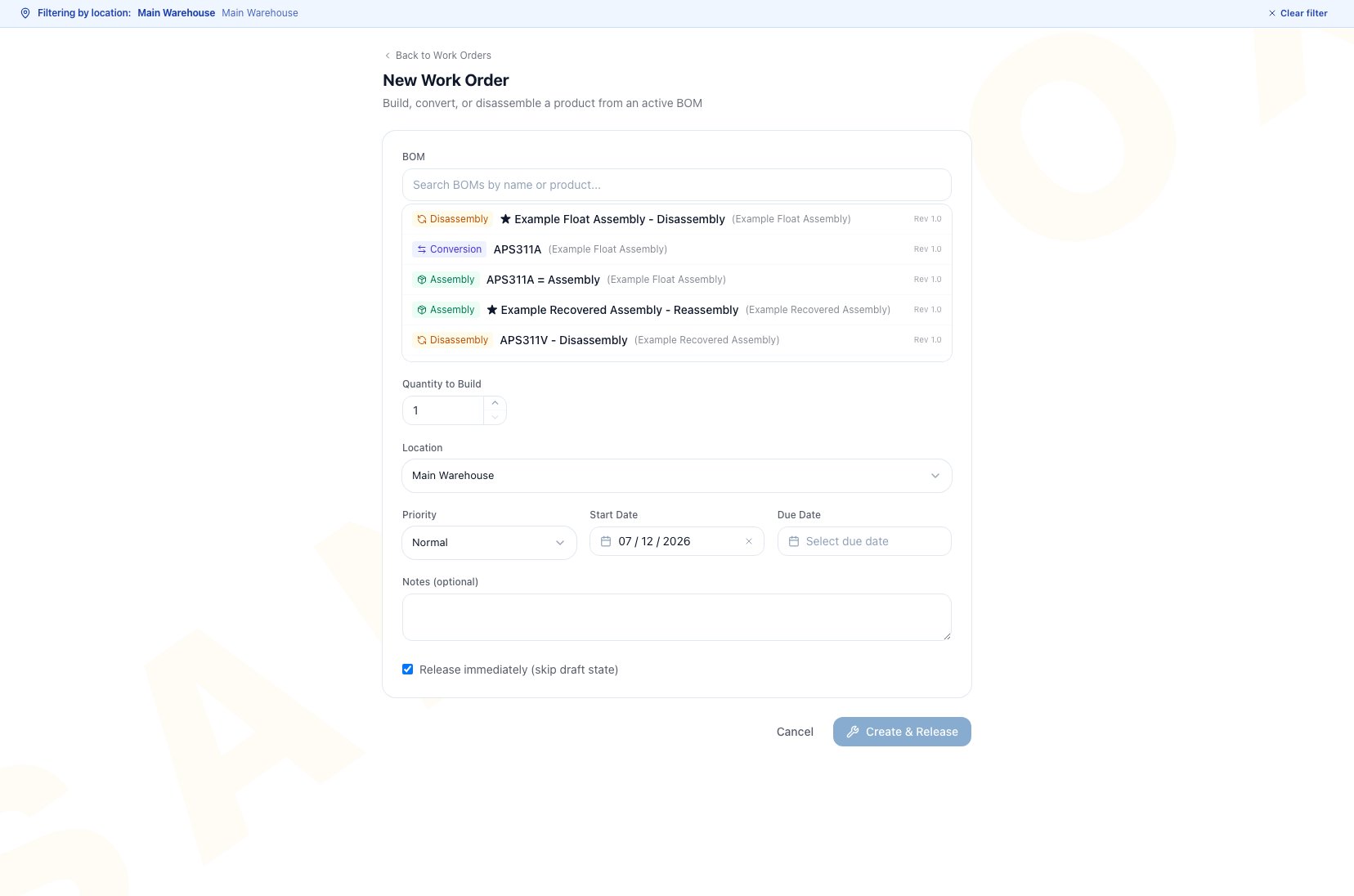 The safest habit is simple: open every newly created work order and verify its BOM, quantity, location, status, availability, serial requirements, and dates before the floor starts work.
## Use Build All From Sales Documents
An eligible sales order or invoice can show a Manufacturing section with **Build All**. Arcus considers manufactured lines, skips kit-component child lines, and does not create another work order for the same document line when a non-cancelled work order is already linked.
Before clicking **Build All**:
1. Confirm every intended product is **Manufactured** or **Both**.
2. Confirm each product has an Active BOM. The starred default is preferred; otherwise Arcus uses the most recently updated active recipe.
3. Check the Manufacturing setting that controls automatic release.
4. Decide whether the sales order or the invoice will be the single manufacturing source for this sale.
Creation is evaluated line by line. Some work orders can be created while other lines are skipped or refused. After the action, inspect the linked work-order list and every manufactured product line. Resolve missing recipes or other blockers, then run **Build All** again only for lines that still have no linked work.
In a sales-order-to-invoice flow, choose one source document for manufacturing. If work orders were already created from the sales order, continue with those linked work orders and do not run **Build All** again from the invoice.
## Run A Work Order Through Its Lifecycle
| Stage | Operator task | Result to verify |
| ----------- | ---------------------------------------------------------------------------------------------- | ------------------------------------------------------------------------------ |
| Draft | Review recipe snapshot, quantity, location, dates, instructions, availability, and serial plan | Work can be corrected before commitment |
| Released | Make the approved job ready for floor execution | Materials and labor actions become available under the normal gates |
| In Progress | Start work, issue or substitute materials, record labor, and manage serials | Actual cost and floor progress accumulate on the work order |
| Completed | Record finished or recovered quantity and required serials | Inventory and manufacturing accounting movements are posted for the completion |
| Closed | Finish operational review and close remaining manufacturing cost | The work order is no longer open production work |
| Cancelled | Stop eligible unfinished work through the cancellation workflow | Material and cost effects are handled by the work-order rules |
Use [Work Orders](/support/manufacturing/work-orders) for queue views, statuses, start, completion, close, and cancellation. The work-order detail is the source of truth when a group, planning page, or sales document shows only a summary.
## Follow Materials, Labor, Serials, And Cost
Manufacturing activity is not only a status change:
* Material issues move component value into work in process. Returns, scrap, and approved substitutions change the actual material story.
* Timer sessions, manual labor, or configured standard labor record the labor actually charged to the job.
* Completion adds the finished or recovered product and relieves the appropriate work-in-process cost. Serialized output requires the serial details demanded by the completion workflow.
* Closing completes the final operational and cost review. Use the work order's inventory, cost, completion, and GL history for transaction-level evidence.
Use [Materials and Substitutions](/support/manufacturing/materials-and-substitutions), [Labor Tracking](/support/manufacturing/labor-tracking), and [Partial Completions and Undo](/support/manufacturing/partial-completions-and-undo) for the detailed controls. Use [Travelers](/support/manufacturing/travelers) for the printable floor packet.
## Coordinate Planning Without Mixing Ledgers
* **Combined Runs** coordinate members and intermediate flow. Each member keeps its own materials, labor, completion, inventory, and accounting history. The group does not post a separate manufacturing ledger.
* **Production Planning (MRP)** calculates suggestions. Running MRP alone does not change stock or accounting. Created work orders and purchase orders follow their own lifecycles.
* **Reports** summarize current work-order data. Correct the owning BOM, work order, inventory record, or accounting record rather than trying to edit a report result.
## Check Linked Sales Work Before Cancellation
Before cancelling or voiding a sales document, inspect its linked manufacturing work:
* Draft or Released child work orders can be cancelled as part of the sales-document cancellation flow.
* In Progress work blocks that cancellation until the work order is addressed directly.
* Completed or Closed child work orders block sales-document cancellation. Process the finished goods through the appropriate RMA or scrap workflow, then retry cancellation.
This prevents an order cancellation from hiding physical work that has already begun or completed.
## Troubleshooting And Refusals
* **The Manufacturing tab has no build actions**: set the product supply method to **Manufactured** or **Both**, then create an Active BOM.
* **A BOM is missing from New Work Order**: confirm the recipe is Active and belongs to the intended product or variant.
* **Build All is missing or disabled**: confirm the document is a sales order or invoice with manufactured lines, at least one eligible Active BOM, and a status that still allows manufacturing.
* **Only some Build All lines created work**: inspect the linked list and product lines, fix the missing recipe or line-specific gate, and retry only after confirming which work already exists.
* **MRP does not analyze a product**: verify active status, inventory tracking, **Manufactured** or **Both**, and an Active default BOM.
* **Release is refused**: confirm edit permission, current Draft status, and the request result. A shortage does not block Release, but it can block material issue or completion and still must be resolved before the floor consumes or completes work.
* **A sales document cannot be cancelled**: review linked In Progress, Completed, or Closed work and follow the manufacturing decision required for that state.
## Common Scenarios
### Build from forecast and open demand
Set the product to **Manufactured** or **Both**, activate and star the intended default BOM, then run **Manufacturing > Production Planning**. Review the suggestion's demand and supply, create or customize the work order, and verify whether it is Draft or Released before the floor begins.
### Recover a component and use it in another build
Use a Disassembly BOM for the teardown and an Assembly BOM for the later build. Plan a Combined Run when both jobs need shared sequence and flow context, but complete the teardown member before treating its recovered product as available stock.
### Manufacture items for a sale
Use **Build All** from either the sales order or the invoice, not both. Inspect linked work after the action because eligible lines are evaluated independently and some can be created while others are skipped.
## FAQ
### Does the starred default BOM control every creation path?
No. MRP and **Build All** prefer the Active default. Product **Build This Product** preselects the most recently updated Active BOM, so verify the recipe on the form.
### Does releasing a work order move inventory?
No. Release commits the job to the manufacturing workflow. Material, completion, return, scrap, and other physical actions create inventory effects later.
### Does running MRP reserve stock or post cost?
No. MRP calculates suggestions. Created work and purchase records follow their own lifecycles.
### Where are serial numbers recorded?
Follow the serial prompts on the work order's material and completion workflows. Serialized output requires the completion serial details for the quantity being completed.
### Can cancelling a sales document erase completed manufacturing?
No. A Completed or Closed child work order blocks sales-document cancellation. Process the finished goods through the appropriate RMA or scrap workflow, then retry cancellation; the manufacturing, inventory, and accounting history remains intact.
## Related Guides
### Recipes And Readiness
Choose recipe types, components, phantoms, cost, availability, documents, and paired recipes.
Create an Assembly, Disassembly, or Conversion recipe with correct quantities, cost, labor, and instructions.
Activate, revise, set a default, supersede, archive, or restore a recipe without rewriting work history.
Take a stocked product apart or transform inputs into different outputs.
Pair forward and reverse recipes without assuming one reverses the other's transactions.
Attach and maintain drawings, work instructions, and other controlled recipe documents.
Read current availability, limiting components, phantom expansion, and teardown recovery options.
### Work Execution
Create, release, start, complete, close, cancel, and review one manufacturing job.
Issue, return, scrap, and substitute components with the correct inventory result.
Use timers, manual entries, and standard labor without double-booking cost.
Complete in stages, capture serials, and reverse only eligible completion activity.
Print the work-order traveler used by operators on the floor.
### Planning, Review, And Control
Coordinate two or more Draft member work orders and review intermediate product flow.
Compare demand with stock and open supply, then create selected work and purchase records.
Review WIP age, cost variance, completed output, and component usage.
Control new-BOM overhead, timer labor fallback, automatic release, and automatic timer start.
### Product And Inventory Foundations
Use these references when a Manufacturing guide sends you back to product eligibility, costing, serial setup, or movement history.
Prepare the physical product or child variant that Arcus will stock, build, disassemble, or convert.
Choose the right product type and understand how current product and inventory costs affect manufacturing estimates.
Review unit-level identity and history when a source, material, or completed output is serialized.
Audit the stock movements and FIFO cost layers created by manufacturing actions and reversals.
The safest habit is simple: open every newly created work order and verify its BOM, quantity, location, status, availability, serial requirements, and dates before the floor starts work.
## Use Build All From Sales Documents
An eligible sales order or invoice can show a Manufacturing section with **Build All**. Arcus considers manufactured lines, skips kit-component child lines, and does not create another work order for the same document line when a non-cancelled work order is already linked.
Before clicking **Build All**:
1. Confirm every intended product is **Manufactured** or **Both**.
2. Confirm each product has an Active BOM. The starred default is preferred; otherwise Arcus uses the most recently updated active recipe.
3. Check the Manufacturing setting that controls automatic release.
4. Decide whether the sales order or the invoice will be the single manufacturing source for this sale.
Creation is evaluated line by line. Some work orders can be created while other lines are skipped or refused. After the action, inspect the linked work-order list and every manufactured product line. Resolve missing recipes or other blockers, then run **Build All** again only for lines that still have no linked work.
In a sales-order-to-invoice flow, choose one source document for manufacturing. If work orders were already created from the sales order, continue with those linked work orders and do not run **Build All** again from the invoice.
## Run A Work Order Through Its Lifecycle
| Stage | Operator task | Result to verify |
| ----------- | ---------------------------------------------------------------------------------------------- | ------------------------------------------------------------------------------ |
| Draft | Review recipe snapshot, quantity, location, dates, instructions, availability, and serial plan | Work can be corrected before commitment |
| Released | Make the approved job ready for floor execution | Materials and labor actions become available under the normal gates |
| In Progress | Start work, issue or substitute materials, record labor, and manage serials | Actual cost and floor progress accumulate on the work order |
| Completed | Record finished or recovered quantity and required serials | Inventory and manufacturing accounting movements are posted for the completion |
| Closed | Finish operational review and close remaining manufacturing cost | The work order is no longer open production work |
| Cancelled | Stop eligible unfinished work through the cancellation workflow | Material and cost effects are handled by the work-order rules |
Use [Work Orders](/support/manufacturing/work-orders) for queue views, statuses, start, completion, close, and cancellation. The work-order detail is the source of truth when a group, planning page, or sales document shows only a summary.
## Follow Materials, Labor, Serials, And Cost
Manufacturing activity is not only a status change:
* Material issues move component value into work in process. Returns, scrap, and approved substitutions change the actual material story.
* Timer sessions, manual labor, or configured standard labor record the labor actually charged to the job.
* Completion adds the finished or recovered product and relieves the appropriate work-in-process cost. Serialized output requires the serial details demanded by the completion workflow.
* Closing completes the final operational and cost review. Use the work order's inventory, cost, completion, and GL history for transaction-level evidence.
Use [Materials and Substitutions](/support/manufacturing/materials-and-substitutions), [Labor Tracking](/support/manufacturing/labor-tracking), and [Partial Completions and Undo](/support/manufacturing/partial-completions-and-undo) for the detailed controls. Use [Travelers](/support/manufacturing/travelers) for the printable floor packet.
## Coordinate Planning Without Mixing Ledgers
* **Combined Runs** coordinate members and intermediate flow. Each member keeps its own materials, labor, completion, inventory, and accounting history. The group does not post a separate manufacturing ledger.
* **Production Planning (MRP)** calculates suggestions. Running MRP alone does not change stock or accounting. Created work orders and purchase orders follow their own lifecycles.
* **Reports** summarize current work-order data. Correct the owning BOM, work order, inventory record, or accounting record rather than trying to edit a report result.
## Check Linked Sales Work Before Cancellation
Before cancelling or voiding a sales document, inspect its linked manufacturing work:
* Draft or Released child work orders can be cancelled as part of the sales-document cancellation flow.
* In Progress work blocks that cancellation until the work order is addressed directly.
* Completed or Closed child work orders block sales-document cancellation. Process the finished goods through the appropriate RMA or scrap workflow, then retry cancellation.
This prevents an order cancellation from hiding physical work that has already begun or completed.
## Troubleshooting And Refusals
* **The Manufacturing tab has no build actions**: set the product supply method to **Manufactured** or **Both**, then create an Active BOM.
* **A BOM is missing from New Work Order**: confirm the recipe is Active and belongs to the intended product or variant.
* **Build All is missing or disabled**: confirm the document is a sales order or invoice with manufactured lines, at least one eligible Active BOM, and a status that still allows manufacturing.
* **Only some Build All lines created work**: inspect the linked list and product lines, fix the missing recipe or line-specific gate, and retry only after confirming which work already exists.
* **MRP does not analyze a product**: verify active status, inventory tracking, **Manufactured** or **Both**, and an Active default BOM.
* **Release is refused**: confirm edit permission, current Draft status, and the request result. A shortage does not block Release, but it can block material issue or completion and still must be resolved before the floor consumes or completes work.
* **A sales document cannot be cancelled**: review linked In Progress, Completed, or Closed work and follow the manufacturing decision required for that state.
## Common Scenarios
### Build from forecast and open demand
Set the product to **Manufactured** or **Both**, activate and star the intended default BOM, then run **Manufacturing > Production Planning**. Review the suggestion's demand and supply, create or customize the work order, and verify whether it is Draft or Released before the floor begins.
### Recover a component and use it in another build
Use a Disassembly BOM for the teardown and an Assembly BOM for the later build. Plan a Combined Run when both jobs need shared sequence and flow context, but complete the teardown member before treating its recovered product as available stock.
### Manufacture items for a sale
Use **Build All** from either the sales order or the invoice, not both. Inspect linked work after the action because eligible lines are evaluated independently and some can be created while others are skipped.
## FAQ
### Does the starred default BOM control every creation path?
No. MRP and **Build All** prefer the Active default. Product **Build This Product** preselects the most recently updated Active BOM, so verify the recipe on the form.
### Does releasing a work order move inventory?
No. Release commits the job to the manufacturing workflow. Material, completion, return, scrap, and other physical actions create inventory effects later.
### Does running MRP reserve stock or post cost?
No. MRP calculates suggestions. Created work and purchase records follow their own lifecycles.
### Where are serial numbers recorded?
Follow the serial prompts on the work order's material and completion workflows. Serialized output requires the completion serial details for the quantity being completed.
### Can cancelling a sales document erase completed manufacturing?
No. A Completed or Closed child work order blocks sales-document cancellation. Process the finished goods through the appropriate RMA or scrap workflow, then retry cancellation; the manufacturing, inventory, and accounting history remains intact.
## Related Guides
### Recipes And Readiness
Choose recipe types, components, phantoms, cost, availability, documents, and paired recipes.
Create an Assembly, Disassembly, or Conversion recipe with correct quantities, cost, labor, and instructions.
Activate, revise, set a default, supersede, archive, or restore a recipe without rewriting work history.
Take a stocked product apart or transform inputs into different outputs.
Pair forward and reverse recipes without assuming one reverses the other's transactions.
Attach and maintain drawings, work instructions, and other controlled recipe documents.
Read current availability, limiting components, phantom expansion, and teardown recovery options.
### Work Execution
Create, release, start, complete, close, cancel, and review one manufacturing job.
Issue, return, scrap, and substitute components with the correct inventory result.
Use timers, manual entries, and standard labor without double-booking cost.
Complete in stages, capture serials, and reverse only eligible completion activity.
Print the work-order traveler used by operators on the floor.
### Planning, Review, And Control
Coordinate two or more Draft member work orders and review intermediate product flow.
Compare demand with stock and open supply, then create selected work and purchase records.
Review WIP age, cost variance, completed output, and component usage.
Control new-BOM overhead, timer labor fallback, automatic release, and automatic timer start.
### Product And Inventory Foundations
Use these references when a Manufacturing guide sends you back to product eligibility, costing, serial setup, or movement history.
Prepare the physical product or child variant that Arcus will stock, build, disassemble, or convert.
Choose the right product type and understand how current product and inventory costs affect manufacturing estimates.
Review unit-level identity and history when a source, material, or completed output is serialized.
Audit the stock movements and FIFO cost layers created by manufacturing actions and reversals.