> ## Documentation Index
> Fetch the complete documentation index at: https://docs.arcuserp.com/llms.txt
> Use this file to discover all available pages before exploring further.
# To Pack
> See every sales order that still has units to pack, oldest first, and open an order's pack page to start or finish packing it.
Use **Operations > Fulfillment > To Pack** as the packing to-do list. It lists every open sales order that still has physical units not yet in a package, starting with the order that has waited longest. Select an order to open its pack page, where you build packages, scan items and buy labels.
 ## Before You Start
* **Permissions**: opening the list needs **View Fulfillment**. Opening an order's pack page needs **Pack Orders**; without it, **Pack** still shows but the pack page does not open for you.
* **Location**: the list follows the location picked in the header and the locations your user may work at. Orders with no location show at every location.
* **Which orders appear**: sales orders that are open or processing and still have units to pack. The list counts only physical units that ship from your stock, so it leaves out:
* drop-ship lines, which the vendor ships directly;
* kit and variant parent lines (their components are counted instead);
* lines whose stock reservation was released on purpose to wait for a purchase order;
* units already in a package, packed or shipped.
An order drops off the list once every remaining unit is in a package, even before the package ships.
The list does not check payment or holds. An order can appear here and still be refused when you create a package, for example "Collect payment or attach terms first." on an unpaid order with no card hold or payment terms. See [Fulfillment Station](/support/fulfillment/station).
Other ways in:
* Search for **To Pack** in the command palette.
## Read the List
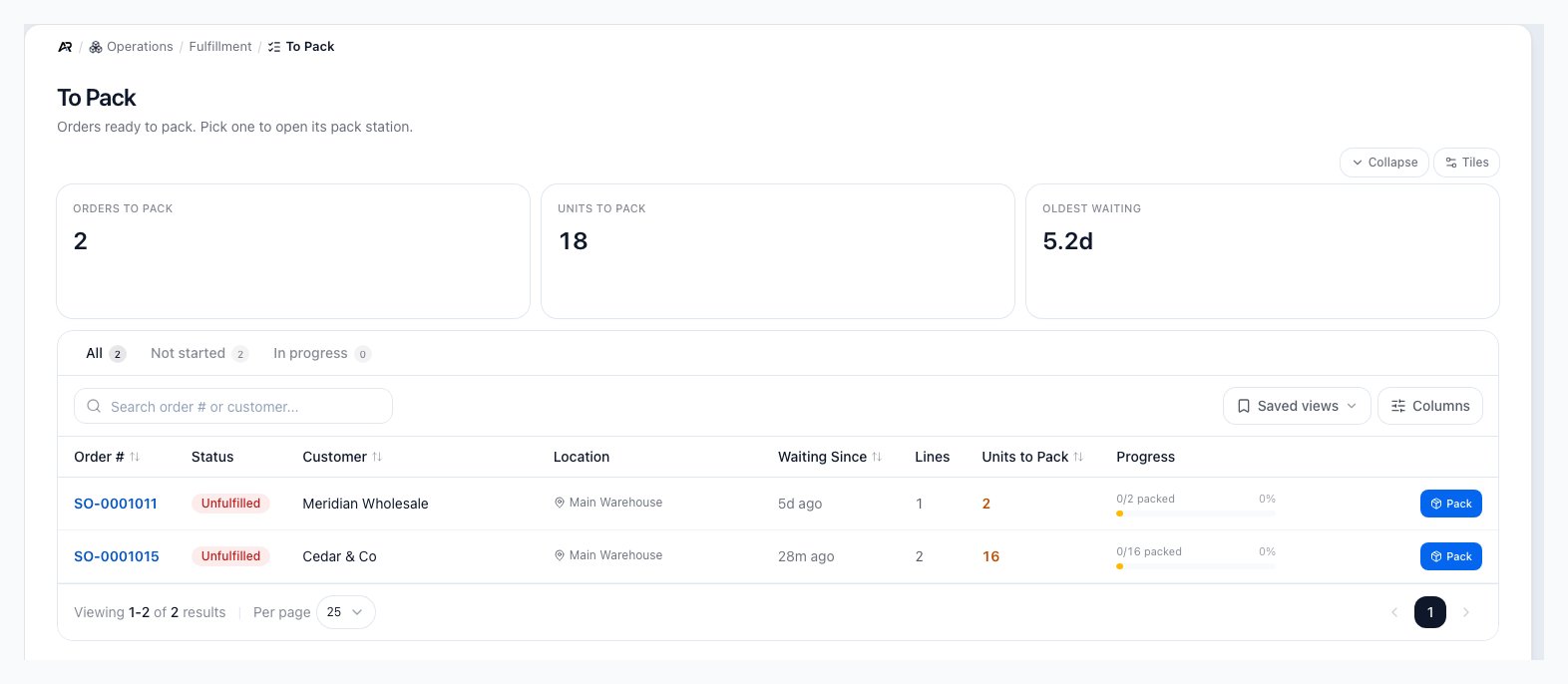
The header reads **To Pack**: "Orders ready to pack. Pick one to open its pack station."
Three tiles sit above the list:
* **Orders to pack**: how many orders have units left to pack.
* **Units to pack**: the total units left across those orders.
* **Oldest waiting**: how many days the oldest order has waited since it was created. It turns red at two days or more.
Tabs split the list by packing progress, each with a count:
* **All**: every order with units to pack.
* **Not started**: no unit on the order is packed yet.
* **In progress**: some units are packed and some are not.
An **Attention** tab appears only when an order fits neither progress tab, so nothing drops out of the count.
The columns are:
| Column | Shows |
| - | - |
| **Order #** | The order number. It opens the order. |
| **Status** | The order's fulfillment status, such as unfulfilled, partially fulfilled or backordered. |
| **Customer** | The customer name. |
| **Location** | The order's location. |
| **Waiting Since** | How long ago the order was created. |
| **Lines** | How many lines still have units to pack. |
| **Units to Pack** | How many units are not yet in a package. |
| **Progress** | Units packed out of the order's total physical units, as a bar and a percentage. |
The list starts with the oldest order, so packing goes first in, first out. Select a column header to sort by **Order #**, **Customer**, **Waiting Since** or **Units to Pack** instead.
Search matches the order number and the customer name. **Saved views** keep a tab, search, sort and column layout, and **Columns** hides, shows or reorders columns. The search, tab, sort and page stay in the page address, so going Back from a pack page, refreshing, or sharing the link keeps them.
When nothing is waiting, the list says "Nothing to pack" and "All fulfillable orders at this location are packed. New orders appear here as they are paid and ready." If the list cannot load, a red notice reads "Could not load the pack queue." followed by the reason.
## Pack an Order
1. Open **Operations > Fulfillment > To Pack** and confirm the location in the header.
2. Pick an order. Start with **Not started** for new work or **In progress** to finish orders someone began.
3. Select the row or **Pack**. The order's pack page opens, titled **Pack** with the order number.
4. Build the packages: add a package or pallet, scan or pick the items, and get rates and a label. The pack page is described in [Fulfillment Station](/support/fulfillment/station) under "Pack One Order".
5. Return to **To Pack** for the next order. When every unit on the order is in a package, the order leaves this list.
The order number opens the order itself instead of the pack page.
## What Changes Here
The list itself changes nothing: it only reads orders. It refreshes on its own when someone creates a package, changes a package's items, fulfills a package or edits the order, so two packers see the same list. Packing, labels and fulfillment change stock, the ledger and the customer's emails on the pack page and the Fulfillment Station; see [Fulfillment Station](/support/fulfillment/station) for those side effects.
## Common Scenarios
* **An order is missing**: check the header location, whether all of its units are already in packages (look on the [Fulfillment Station](/support/fulfillment/station)), whether its lines are drop-ship, and whether the order is still a draft or quote.
* **Pack does not open the pack page**: your user needs **Pack Orders**.
## Related Articles
Operations > Fulfillment > Fulfillment Station: the pack page, labels, printing and Mark as Fulfilled.
Let Arcus pack the remaining units into suggested boxes.
Operations > Fulfillment > Pick Lists: send staff to the right bins before packing.
Operations > Fulfillment > Freight Queue: orders that ship on pallets.
Operations > Fulfillment > No-show queue: pickup orders that were never collected.
Sales > Orders > All Orders: open an order behind a row.
This documentation is built and hosted on [Mintlify](https://mintlify.com), a developer documentation platform.
## Before You Start
* **Permissions**: opening the list needs **View Fulfillment**. Opening an order's pack page needs **Pack Orders**; without it, **Pack** still shows but the pack page does not open for you.
* **Location**: the list follows the location picked in the header and the locations your user may work at. Orders with no location show at every location.
* **Which orders appear**: sales orders that are open or processing and still have units to pack. The list counts only physical units that ship from your stock, so it leaves out:
* drop-ship lines, which the vendor ships directly;
* kit and variant parent lines (their components are counted instead);
* lines whose stock reservation was released on purpose to wait for a purchase order;
* units already in a package, packed or shipped.
An order drops off the list once every remaining unit is in a package, even before the package ships.
The list does not check payment or holds. An order can appear here and still be refused when you create a package, for example "Collect payment or attach terms first." on an unpaid order with no card hold or payment terms. See [Fulfillment Station](/support/fulfillment/station).
Other ways in:
* Search for **To Pack** in the command palette.
## Read the List
The header reads **To Pack**: "Orders ready to pack. Pick one to open its pack station."
Three tiles sit above the list:
* **Orders to pack**: how many orders have units left to pack.
* **Units to pack**: the total units left across those orders.
* **Oldest waiting**: how many days the oldest order has waited since it was created. It turns red at two days or more.
Tabs split the list by packing progress, each with a count:
* **All**: every order with units to pack.
* **Not started**: no unit on the order is packed yet.
* **In progress**: some units are packed and some are not.
An **Attention** tab appears only when an order fits neither progress tab, so nothing drops out of the count.
The columns are:
| Column | Shows |
| - | - |
| **Order #** | The order number. It opens the order. |
| **Status** | The order's fulfillment status, such as unfulfilled, partially fulfilled or backordered. |
| **Customer** | The customer name. |
| **Location** | The order's location. |
| **Waiting Since** | How long ago the order was created. |
| **Lines** | How many lines still have units to pack. |
| **Units to Pack** | How many units are not yet in a package. |
| **Progress** | Units packed out of the order's total physical units, as a bar and a percentage. |
The list starts with the oldest order, so packing goes first in, first out. Select a column header to sort by **Order #**, **Customer**, **Waiting Since** or **Units to Pack** instead.
Search matches the order number and the customer name. **Saved views** keep a tab, search, sort and column layout, and **Columns** hides, shows or reorders columns. The search, tab, sort and page stay in the page address, so going Back from a pack page, refreshing, or sharing the link keeps them.
When nothing is waiting, the list says "Nothing to pack" and "All fulfillable orders at this location are packed. New orders appear here as they are paid and ready." If the list cannot load, a red notice reads "Could not load the pack queue." followed by the reason.
## Pack an Order
1. Open **Operations > Fulfillment > To Pack** and confirm the location in the header.
2. Pick an order. Start with **Not started** for new work or **In progress** to finish orders someone began.
3. Select the row or **Pack**. The order's pack page opens, titled **Pack** with the order number.
4. Build the packages: add a package or pallet, scan or pick the items, and get rates and a label. The pack page is described in [Fulfillment Station](/support/fulfillment/station) under "Pack One Order".
5. Return to **To Pack** for the next order. When every unit on the order is in a package, the order leaves this list.
The order number opens the order itself instead of the pack page.
## What Changes Here
The list itself changes nothing: it only reads orders. It refreshes on its own when someone creates a package, changes a package's items, fulfills a package or edits the order, so two packers see the same list. Packing, labels and fulfillment change stock, the ledger and the customer's emails on the pack page and the Fulfillment Station; see [Fulfillment Station](/support/fulfillment/station) for those side effects.
## Common Scenarios
* **An order is missing**: check the header location, whether all of its units are already in packages (look on the [Fulfillment Station](/support/fulfillment/station)), whether its lines are drop-ship, and whether the order is still a draft or quote.
* **Pack does not open the pack page**: your user needs **Pack Orders**.
## Related Articles
Operations > Fulfillment > Fulfillment Station: the pack page, labels, printing and Mark as Fulfilled.
Let Arcus pack the remaining units into suggested boxes.
Operations > Fulfillment > Pick Lists: send staff to the right bins before packing.
Operations > Fulfillment > Freight Queue: orders that ship on pallets.
Operations > Fulfillment > No-show queue: pickup orders that were never collected.
Sales > Orders > All Orders: open an order behind a row.
This documentation is built and hosted on [Mintlify](https://mintlify.com), a developer documentation platform.