> ## Documentation Index
> Fetch the complete documentation index at: https://docs.arcuserp.com/llms.txt
> Use this file to discover all available pages before exploring further.
# No-show Queue
> Find pickup orders the customer has not collected, see how long each has waited and what was paid, and mark an abandoned order no-show.
Use **Operations > Fulfillment > No-show queue** to work pickup orders that are ready but still waiting for the customer. Every order here is awaiting pickup and its pickup-ready time has passed, so the list shows how long each order has waited, what is still owed, and whether the customer already paid. When an order is genuinely abandoned, mark it no-show from here. Arcus never marks an order no-show on its own.
 ## Before You Start
* **Permissions**: opening the queue needs **View Fulfillment**. The **No-show** button shows for everyone who can open the queue, but marking an order no-show needs **Edit Orders**, and loading the confirmation needs **View Orders**. Without them, Arcus refuses the step.
* **Which orders appear**: pickup orders that are awaiting pickup, are not cancelled, and have a pickup-ready time in the past. An order joins the queue as soon as its pickup-ready time passes and leaves it when it is picked up, cancelled, or marked no-show.
* **Location**: the queue follows the location picked in the header. Orders with no location show at every location.
* **Reminders**: Arcus emails the customer pickup reminders on the days set under **Pickup Reminders** at **Settings > System > Approval Workflows** (3, 7 and 12 days after the order is ready, by default). The **Last Reminder** column shows the most recent one.
Other ways in:
* Search for **No-show queue** in the command palette (it also answers to "will call" and "pickup").
* The **No-show queue** item in the Operations navigation shows a count of overdue pickups.
## Read the Queue
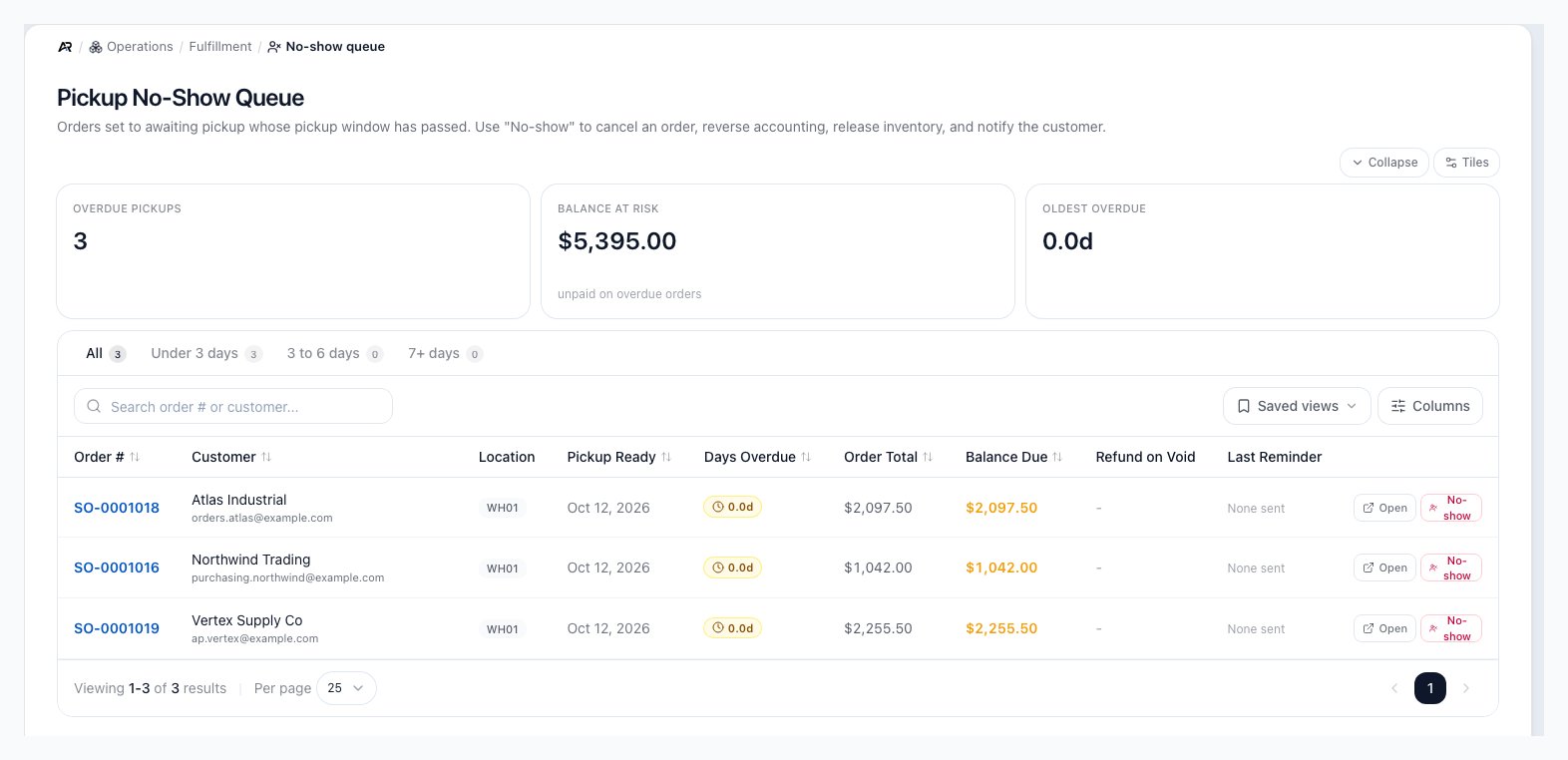
The page header reads **Pickup No-Show Queue**: "Orders set to awaiting pickup whose pickup window has passed."
Three tiles sit above the list:
* **Overdue pickups**: the number of orders in the queue.
* **Balance at risk**: the unpaid balance across the overdue orders.
* **Oldest overdue**: how many days the longest-waiting order has waited. It turns red at seven days or more.
Tabs split the queue by how long the order has waited since it was ready: **All**, **Under 3 days**, **3 to 6 days**, and **7+ days**, each with a count. An **Attention** tab appears only when an order fits none of the other tabs, so nothing drops out of the count.
The columns are:
| Column | Shows |
| - | - |
| **Order #** | The order number. It opens the order. |
| **Customer** | The customer name, with the customer's email under it. |
| **Location** | The pickup location's code. |
| **Pickup Ready** | The date the order became ready for pickup. Hover it for the time. |
| **Days Overdue** | Days since the order became ready, in a badge that turns amber at three days and red at seven. |
| **Order Total** | The order total. |
| **Balance Due** | What the customer still owes. A positive balance is highlighted. |
| **Refund on Void** | **Prepaid** with the amount when the customer already paid something on the order, or a dash when nothing was collected. |
| **Last Reminder** | The date of the last pickup reminder email, or **None sent**. |
The list starts with the longest-waiting orders. Select a column header to sort by **Order #**, **Customer**, **Pickup Ready**, **Days Overdue**, **Order Total** or **Balance Due**.
Search matches the order number and the customer name. **Saved views** keep a tab, search, sort and column layout, and **Columns** hides, shows or reorders columns. The search, tab, sort and page stay in the page address, so going Back from an order, refreshing, or sharing the link keeps them.
Select a row, the order number, or **Open** to open the order. When nothing is overdue, the list says "No overdue pickup orders" and "All awaiting-pickup orders are within their pickup window."
## Mark an Order No-Show
Mark an order no-show only when the customer will not collect it: they told you so, or they have not answered your reminders and calls. If the customer already collected the order, open it and select **Confirm Pickup** instead.
1. Find the order. Use the **7+ days** tab or sort by **Days Overdue**.
2. Select **No-show** on its row.
3. Read **Mark Customer No-Show**. Under **This action will**, Arcus lists what happens to this order: the payment line, **Release reserved inventory back to stock.**, the ledger reversal, and **Email a cancellation notice** with the customer's email when the customer has one.
4. Optionally enter a **Reason**. It is saved with the cancellation on the order.
5. Select **Mark No-Show**.
Arcus shows "Order (number) marked customer no-show. GL reversed; inventory released." The order leaves the queue and is cancelled.
When the order cannot be marked no-show, the dialog lists the reason and **Mark No-Show** stays disabled; hover it to read the reason again. **Cancel** closes the dialog without changing anything.
## What Mark No-Show Changes
* **The order**: it is cancelled, the no-show date is stamped on it, and your reason is kept with the cancellation.
* **Stock**: the reserved inventory goes back to stock.
* **The ledger**: the sale's revenue and cost of goods sold, its sales tax (including at your connected tax service), and any shipping and discount postings are reversed. The original entries stay for the audit trail, and the reversing entries net them out.
* **Payments**: Arcus does not refund anything automatically. Any amount the customer paid stays on their account as a credit, and a refund-owed note for each payment is added to the order's activity. A person then decides whether to refund it, keep it as credit, or apply it to another order. When the dialog shows a payment line, read it as the amount that is owed back, not as a refund that will be sent.
* **The customer**: when the customer has an email address, Arcus emails a no-show notice. When the customer paid, it acknowledges the payment on file and says your team will be in touch about it; it names a refund only when one was actually issued on the order.
* **Audit and refresh**: the no-show is recorded in the activity log as a customer no-show by staff, and everyone with the queue or the order open sees the change without reloading.
## Messages You May See
| Message | What it means | What to do |
| - | - | - |
| "Only pickup orders can be marked customer no-show." | The order is not a pickup order. | Use the order's cancel workflow instead. |
| A message that the order's status is not awaiting pickup | The order was picked up, shipped or cancelled since the queue loaded. | Refresh the queue; open the order to see what happened. |
| "Order was already marked no-show at" (a date and time) | Someone already marked this order no-show. | No action needed. |
| "Could not load the effect preview. The action still runs and reverses accounting + inventory." | The list of effects could not be loaded, often because your user lacks **View Orders**. | Cancel and check the order first, or continue if you are sure. |
| "Failed to load the pickup no-show queue." | The list could not load. Arcus adds the reason. | Refresh the page. |
| "Failed to mark order no-show", or the reason Arcus gives | The no-show was refused, for example because your user lacks **Edit Orders**. | Read the reason; ask an administrator for the permission if it names one. |
## Related Articles
How pickup reminders and the no-show workflow fit together.
Sales > Orders > All Orders: open the order behind a queue row.
Use the credit a no-show leaves on the customer's account.
Choose between no-show, cancel, void and return.
Operations > Fulfillment > Fulfillment Station: the Pickup filter shows pickup packages.
Operations > Fulfillment > Freight Queue: freight orders by stage.
This documentation is built and hosted on [Mintlify](https://mintlify.com), a developer documentation platform.
## Before You Start
* **Permissions**: opening the queue needs **View Fulfillment**. The **No-show** button shows for everyone who can open the queue, but marking an order no-show needs **Edit Orders**, and loading the confirmation needs **View Orders**. Without them, Arcus refuses the step.
* **Which orders appear**: pickup orders that are awaiting pickup, are not cancelled, and have a pickup-ready time in the past. An order joins the queue as soon as its pickup-ready time passes and leaves it when it is picked up, cancelled, or marked no-show.
* **Location**: the queue follows the location picked in the header. Orders with no location show at every location.
* **Reminders**: Arcus emails the customer pickup reminders on the days set under **Pickup Reminders** at **Settings > System > Approval Workflows** (3, 7 and 12 days after the order is ready, by default). The **Last Reminder** column shows the most recent one.
Other ways in:
* Search for **No-show queue** in the command palette (it also answers to "will call" and "pickup").
* The **No-show queue** item in the Operations navigation shows a count of overdue pickups.
## Read the Queue
The page header reads **Pickup No-Show Queue**: "Orders set to awaiting pickup whose pickup window has passed."
Three tiles sit above the list:
* **Overdue pickups**: the number of orders in the queue.
* **Balance at risk**: the unpaid balance across the overdue orders.
* **Oldest overdue**: how many days the longest-waiting order has waited. It turns red at seven days or more.
Tabs split the queue by how long the order has waited since it was ready: **All**, **Under 3 days**, **3 to 6 days**, and **7+ days**, each with a count. An **Attention** tab appears only when an order fits none of the other tabs, so nothing drops out of the count.
The columns are:
| Column | Shows |
| - | - |
| **Order #** | The order number. It opens the order. |
| **Customer** | The customer name, with the customer's email under it. |
| **Location** | The pickup location's code. |
| **Pickup Ready** | The date the order became ready for pickup. Hover it for the time. |
| **Days Overdue** | Days since the order became ready, in a badge that turns amber at three days and red at seven. |
| **Order Total** | The order total. |
| **Balance Due** | What the customer still owes. A positive balance is highlighted. |
| **Refund on Void** | **Prepaid** with the amount when the customer already paid something on the order, or a dash when nothing was collected. |
| **Last Reminder** | The date of the last pickup reminder email, or **None sent**. |
The list starts with the longest-waiting orders. Select a column header to sort by **Order #**, **Customer**, **Pickup Ready**, **Days Overdue**, **Order Total** or **Balance Due**.
Search matches the order number and the customer name. **Saved views** keep a tab, search, sort and column layout, and **Columns** hides, shows or reorders columns. The search, tab, sort and page stay in the page address, so going Back from an order, refreshing, or sharing the link keeps them.
Select a row, the order number, or **Open** to open the order. When nothing is overdue, the list says "No overdue pickup orders" and "All awaiting-pickup orders are within their pickup window."
## Mark an Order No-Show
Mark an order no-show only when the customer will not collect it: they told you so, or they have not answered your reminders and calls. If the customer already collected the order, open it and select **Confirm Pickup** instead.
1. Find the order. Use the **7+ days** tab or sort by **Days Overdue**.
2. Select **No-show** on its row.
3. Read **Mark Customer No-Show**. Under **This action will**, Arcus lists what happens to this order: the payment line, **Release reserved inventory back to stock.**, the ledger reversal, and **Email a cancellation notice** with the customer's email when the customer has one.
4. Optionally enter a **Reason**. It is saved with the cancellation on the order.
5. Select **Mark No-Show**.
Arcus shows "Order (number) marked customer no-show. GL reversed; inventory released." The order leaves the queue and is cancelled.
When the order cannot be marked no-show, the dialog lists the reason and **Mark No-Show** stays disabled; hover it to read the reason again. **Cancel** closes the dialog without changing anything.
## What Mark No-Show Changes
* **The order**: it is cancelled, the no-show date is stamped on it, and your reason is kept with the cancellation.
* **Stock**: the reserved inventory goes back to stock.
* **The ledger**: the sale's revenue and cost of goods sold, its sales tax (including at your connected tax service), and any shipping and discount postings are reversed. The original entries stay for the audit trail, and the reversing entries net them out.
* **Payments**: Arcus does not refund anything automatically. Any amount the customer paid stays on their account as a credit, and a refund-owed note for each payment is added to the order's activity. A person then decides whether to refund it, keep it as credit, or apply it to another order. When the dialog shows a payment line, read it as the amount that is owed back, not as a refund that will be sent.
* **The customer**: when the customer has an email address, Arcus emails a no-show notice. When the customer paid, it acknowledges the payment on file and says your team will be in touch about it; it names a refund only when one was actually issued on the order.
* **Audit and refresh**: the no-show is recorded in the activity log as a customer no-show by staff, and everyone with the queue or the order open sees the change without reloading.
## Messages You May See
| Message | What it means | What to do |
| - | - | - |
| "Only pickup orders can be marked customer no-show." | The order is not a pickup order. | Use the order's cancel workflow instead. |
| A message that the order's status is not awaiting pickup | The order was picked up, shipped or cancelled since the queue loaded. | Refresh the queue; open the order to see what happened. |
| "Order was already marked no-show at" (a date and time) | Someone already marked this order no-show. | No action needed. |
| "Could not load the effect preview. The action still runs and reverses accounting + inventory." | The list of effects could not be loaded, often because your user lacks **View Orders**. | Cancel and check the order first, or continue if you are sure. |
| "Failed to load the pickup no-show queue." | The list could not load. Arcus adds the reason. | Refresh the page. |
| "Failed to mark order no-show", or the reason Arcus gives | The no-show was refused, for example because your user lacks **Edit Orders**. | Read the reason; ask an administrator for the permission if it names one. |
## Related Articles
How pickup reminders and the no-show workflow fit together.
Sales > Orders > All Orders: open the order behind a queue row.
Use the credit a no-show leaves on the customer's account.
Choose between no-show, cancel, void and return.
Operations > Fulfillment > Fulfillment Station: the Pickup filter shows pickup packages.
Operations > Fulfillment > Freight Queue: freight orders by stage.
This documentation is built and hosted on [Mintlify](https://mintlify.com), a developer documentation platform.