> ## Documentation Index
> Fetch the complete documentation index at: https://docs.arcuserp.com/llms.txt
> Use this file to discover all available pages before exploring further.
# Mighty Leftovers
> Review unpacked units that Mighty could not place, add them to an existing package, or dismiss a warning when no packing action is required.
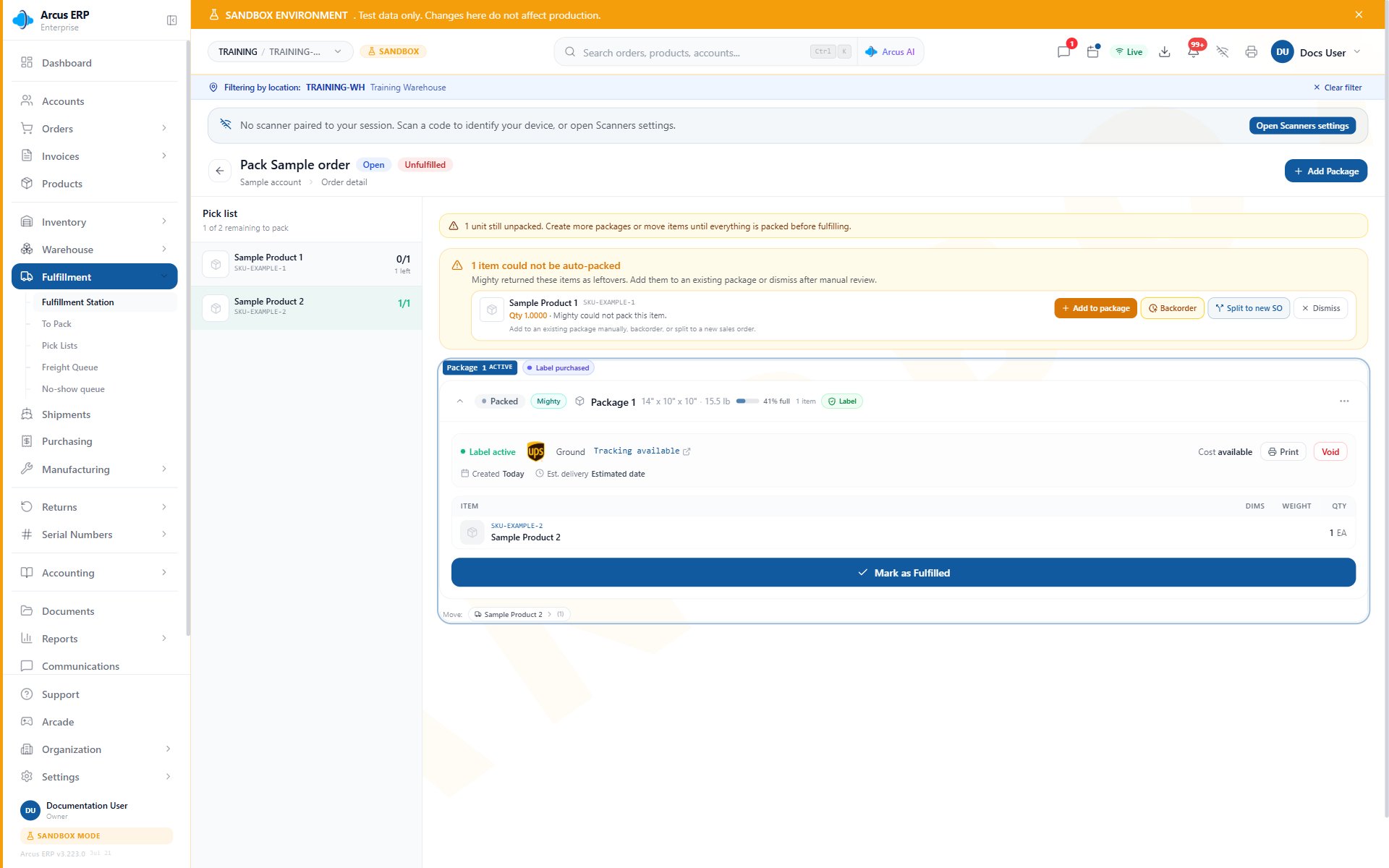
Leftovers are units that remain unpacked after Pack with Mighty. Resolve each leftover before the order moves forward, or leave it open when a lead must confirm a separate backorder or order-copy workflow.
## Open The Leftovers Panel
1. Open the order and choose **Pack with Mighty**.
2. Review the packages created for the remaining unpacked units.
3. Open the **Leftovers** panel when it appears.
4. Read the reason and remaining quantity for each item.
5. Compare the leftover with the physical items and existing packages before choosing an action.
 ## Understand The Reason
The panel can show these reasons:
* **Incompatible packing category**: the item and available box are not allowed together under current packing setup.
* **Item too large**: the item does not fit an active box.
* **Box weight exceeded**: adding the item would exceed the available box weight.
* **No active boxes**: no active box is available for the item.
* **Mighty temporarily unavailable**: packing could not finish at this time.
* **Generic failure**: the item could not be placed and needs operator review.
Correct product or box setup when appropriate, then retry Pack with Mighty. You can also place the units manually when the physical pack is known.
## Add To An Existing Package
Use **Add to package** when an existing package on the same order can safely hold the units.
1. Choose **Add to package** for the leftover.
2. Select an existing package on the same order.
3. Enter a whole-number quantity from 1 through the remaining leftover quantity.
4. Add an optional internal note when the choice needs warehouse context.
5. Confirm the action.
6. Recheck the package contents, dimensions, and weight against the physical box.
You can resolve only part of a leftover. The quantity you add moves into the selected package, and the remaining quantity stays in Leftovers for another decision.
## Dismiss A Leftover Warning
Use **Dismiss** only when no packing action is required. Dismissal removes the warning without packing any units.
1. Confirm the units do not need to be included in a package.
2. Choose **Dismiss**.
3. Enter a clear, nonblank reason.
4. Confirm the dismissal.
Do not dismiss an item only to clear the panel. If the units still need to ship, remain open, or move through another order workflow, leave the leftover unresolved.
The Leftovers panel currently displays **Backorder** and **Split to new SO**, but those two controls are unavailable in the current release. They do not complete either workflow. Leave the leftover unresolved and use the standard backorder or order-copy workflow only after a lead confirms the handoff.
## Continue The Order
After the actionable leftovers are resolved:
1. Confirm every package matches the physical shipment.
2. Confirm any unresolved leftover has an owner and approved next step.
3. Review rates and labels for the packages shipping now.
4. Print and attach the correct labels.
5. Hand the order to a person for final review and fulfillment.
Mighty stops at **Ready to Ship**. It does not complete fulfillment.
## Common Questions
### Why is a leftover still visible after I add units?
You may have added only part of the remaining quantity. Open the leftover again and compare its remaining quantity with the physical items.
### Can I add a leftover to a package from another order?
No. Choose an existing package on the same order.
### What if no existing package is suitable?
Review active box setup and product shipping details, retry Pack with Mighty when appropriate, or use the standard manual packing workflow. Leave the leftover unresolved if the next step requires a lead decision.
### What if Mighty is temporarily unavailable?
Keep the order unchanged and retry later, or pack the remaining units manually when the physical package choice is clear.
## Related Articles
Pack remaining units, review package work, and prepare the order for final fulfillment.
Recover safely when the package split changes or a label must be voided.
Handle partial shipments, backorders, labels, pickup, and freight choices.
Resolve holds, payment blocks, disputes, and other order exceptions.
## Understand The Reason
The panel can show these reasons:
* **Incompatible packing category**: the item and available box are not allowed together under current packing setup.
* **Item too large**: the item does not fit an active box.
* **Box weight exceeded**: adding the item would exceed the available box weight.
* **No active boxes**: no active box is available for the item.
* **Mighty temporarily unavailable**: packing could not finish at this time.
* **Generic failure**: the item could not be placed and needs operator review.
Correct product or box setup when appropriate, then retry Pack with Mighty. You can also place the units manually when the physical pack is known.
## Add To An Existing Package
Use **Add to package** when an existing package on the same order can safely hold the units.
1. Choose **Add to package** for the leftover.
2. Select an existing package on the same order.
3. Enter a whole-number quantity from 1 through the remaining leftover quantity.
4. Add an optional internal note when the choice needs warehouse context.
5. Confirm the action.
6. Recheck the package contents, dimensions, and weight against the physical box.
You can resolve only part of a leftover. The quantity you add moves into the selected package, and the remaining quantity stays in Leftovers for another decision.
## Dismiss A Leftover Warning
Use **Dismiss** only when no packing action is required. Dismissal removes the warning without packing any units.
1. Confirm the units do not need to be included in a package.
2. Choose **Dismiss**.
3. Enter a clear, nonblank reason.
4. Confirm the dismissal.
Do not dismiss an item only to clear the panel. If the units still need to ship, remain open, or move through another order workflow, leave the leftover unresolved.
The Leftovers panel currently displays **Backorder** and **Split to new SO**, but those two controls are unavailable in the current release. They do not complete either workflow. Leave the leftover unresolved and use the standard backorder or order-copy workflow only after a lead confirms the handoff.
## Continue The Order
After the actionable leftovers are resolved:
1. Confirm every package matches the physical shipment.
2. Confirm any unresolved leftover has an owner and approved next step.
3. Review rates and labels for the packages shipping now.
4. Print and attach the correct labels.
5. Hand the order to a person for final review and fulfillment.
Mighty stops at **Ready to Ship**. It does not complete fulfillment.
## Common Questions
### Why is a leftover still visible after I add units?
You may have added only part of the remaining quantity. Open the leftover again and compare its remaining quantity with the physical items.
### Can I add a leftover to a package from another order?
No. Choose an existing package on the same order.
### What if no existing package is suitable?
Review active box setup and product shipping details, retry Pack with Mighty when appropriate, or use the standard manual packing workflow. Leave the leftover unresolved if the next step requires a lead decision.
### What if Mighty is temporarily unavailable?
Keep the order unchanged and retry later, or pack the remaining units manually when the physical package choice is clear.
## Related Articles
Pack remaining units, review package work, and prepare the order for final fulfillment.
Recover safely when the package split changes or a label must be voided.
Handle partial shipments, backorders, labels, pickup, and freight choices.
Resolve holds, payment blocks, disputes, and other order exceptions.